POP3 mail server settings not working is a common issue experienced by users while configuring email accounts in Outlook, Thunderbird, Apple Mail, mobile devices, and other email applications. POP3, also known as Post Office Protocol Version 3, is a widely used email protocol that allows users to download emails from a mail server directly onto a device. When POP3 settings are incorrect, users may face problems sending or receiving emails, repeated login failures, synchronization errors, or connection timeout messages.
POP3 is commonly preferred by users who want to store emails locally on a single device rather than keeping everything synchronized across multiple devices. However, proper server configuration is essential for successful communication between the email application and the mail server. Even a small error in server names, port numbers, passwords, or encryption settings can completely stop email functionality.
Several technical and security-related factors can cause POP3 server settings to fail unexpectedly. Sometimes the issue appears after changing passwords, updating email applications, or modifying antivirus settings. In other cases, outdated software, disabled POP access, or incorrect authentication methods may create connectivity problems.
Understanding how POP3 works and identifying common configuration mistakes helps users troubleshoot these issues more effectively while restoring normal email communication quickly.
Common Reasons Behind POP3 Mail Server Configuration Problems
Many POP3 email issues occur because users accidentally enter incorrect setup information while configuring their email accounts manually. Email providers require specific incoming server addresses, port numbers, and encryption methods that must match exactly.
Below are some common causes of POP3 mail server problems:
- Incorrect POP3 incoming mail server entered during setup
- Wrong port number selected for incoming email communication
- Invalid username or outdated email account password used
- SSL or TLS encryption settings configured improperly
- POP3 access disabled inside email provider account settings
- Firewall or antivirus software blocking mail server connections
- Weak internet connectivity causing synchronization timeout issues
- Corrupted email application profiles affecting account functionality
- Outdated email clients lacking modern security compatibility
- Excessive mailbox storage preventing successful synchronization
Another important reason involves internet security updates introduced by email providers. Many providers now require stronger authentication methods and encrypted communication standards that older email applications may not fully support.
Some users also experience POP3 problems because they attempt to configure accounts using outdated setup guides found online. Email providers occasionally update server addresses, ports, and security requirements, making accurate setup information extremely important.
Recognizing Symptoms Showing POP3 Settings Are Incorrect
Users often notice several warning signs when POP3 settings stop working properly. Identifying these symptoms early helps reduce communication disruptions and prevents extended synchronization failures.
One of the most common symptoms is the inability to receive incoming emails even though internet connectivity remains active. Since POP3 controls incoming mail retrieval, users may still send emails successfully while receiving fails completely.
Repeated password prompts are another major indicator of POP3 configuration issues. Email applications may continuously request login credentials because authentication attempts fail repeatedly during server communication.
Connection timeout errors also commonly appear when the email client cannot establish stable communication with the POP3 server. Weak internet signals, blocked ports, or incorrect encryption settings frequently cause these errors.
Some users may receive server authentication failure messages stating that the username or password is incorrect even when the credentials are accurate. This often happens because of disabled POP access or outdated security settings.
Error messages such as “Cannot connect to incoming mail server” or “POP3 server unavailable” are also common symptoms of server configuration problems. These messages usually indicate incorrect server details or network restrictions preventing communication.
In severe cases, users may experience missing emails, duplicated downloads, or complete account synchronization failures affecting both personal and professional communication.
Correct POP3 Server Settings Required For Email Connectivity
Accurate POP3 server configuration is essential for successful email synchronization across devices and applications. Every email provider uses specific server details that must be entered correctly during setup.
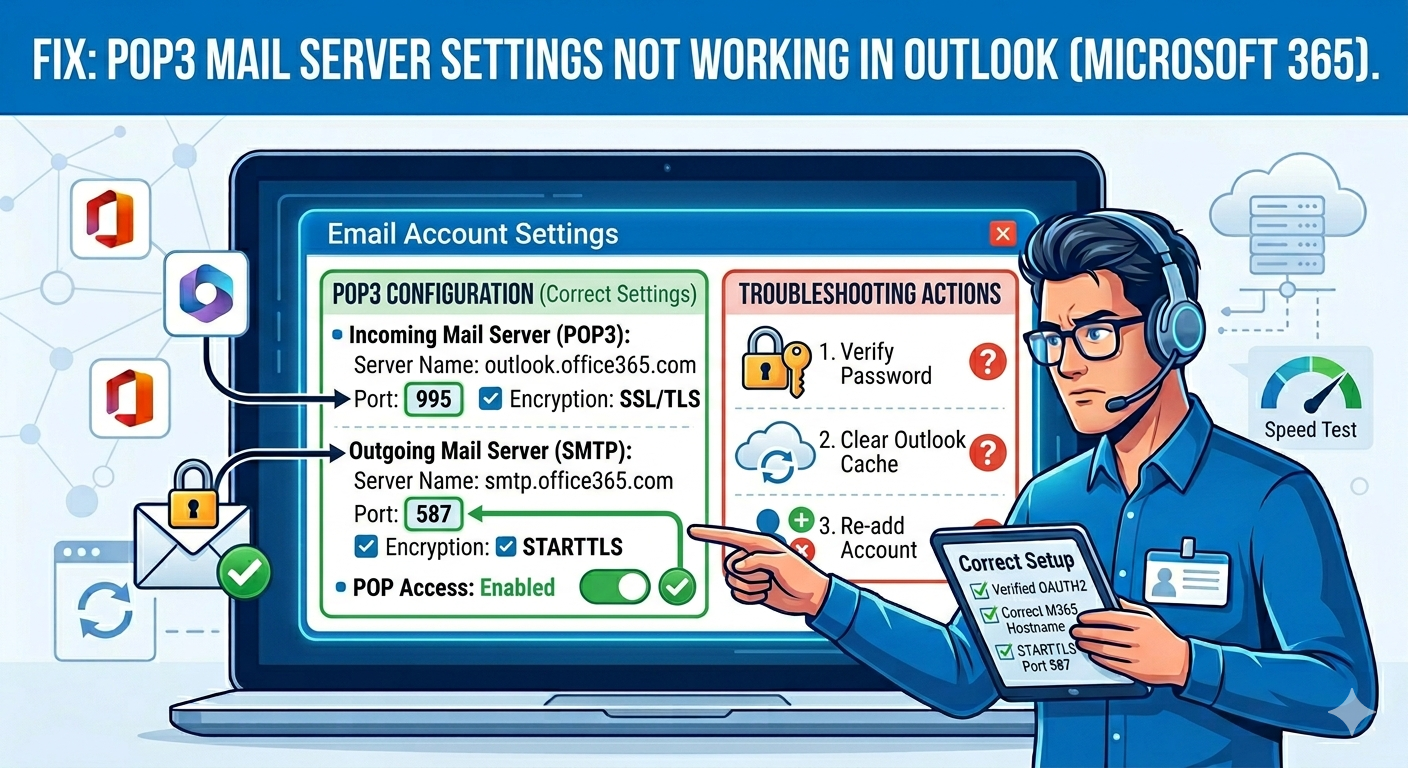
Standard POP3 settings generally include the following information:
- Incoming Mail Server: pop.domainname.com
- POP3 Port Number: 110 or 995
- Encryption Type: SSL or TLS when required
- Username: Full email address in most cases
- Password: Current email account password
- Authentication Required: Enabled when supported
Port 110 is typically used for standard unencrypted POP3 communication, while port 995 supports encrypted SSL connections for improved security. Most modern email providers recommend using SSL encryption to protect account credentials and email data during transmission.
Users should always confirm server details directly from their email provider before configuring POP3 settings manually. Incorrect setup information remains one of the leading causes of synchronization failures.
Another important setting involves leaving copies of emails on the server. POP3 normally downloads and removes emails from the server automatically. Users accessing the same account on multiple devices may prefer enabling “Leave a copy of messages on the server” to avoid losing emails on secondary devices.
Proper authentication settings are equally important because many providers require secure login verification before allowing POP3 access successfully.
Troubleshooting POP3 Mail Server Errors Through Effective Solutions
Fixing POP3 mail server problems often requires step-by-step troubleshooting to identify the exact source of the issue. Most synchronization errors can be resolved successfully through careful verification of settings and software configurations.
The first troubleshooting step should involve checking internet connectivity. A weak or unstable connection may prevent proper communication with incoming mail servers.
Users should then review POP3 server details carefully within their email applications. Even a minor typing error in server names, port numbers, or usernames can stop synchronization entirely.
Re-entering passwords manually is another effective troubleshooting step because saved credentials may become outdated after password changes. Users should also verify that Caps Lock or keyboard language settings are not causing incorrect password entry.
Temporarily disabling antivirus email scanning may help identify whether security software is blocking POP3 communication. Some antivirus programs mistakenly classify mail synchronization as suspicious network activity.
Updating the email application is equally important because outdated software may not support modern encryption standards or authentication requirements introduced by email providers.
Creating a new email profile can also resolve persistent POP3 synchronization issues caused by corrupted account configurations. Damaged application profiles sometimes interfere with incoming server communication even when settings appear correct.
If problems continue, users should verify whether POP access remains enabled inside their email provider account settings. Some providers disable POP3 access by default for security reasons.
Preventing Future POP3 Synchronization Problems Successfully Long-Term
Preventing POP3 server issues requires consistent maintenance, updated software, and proper account management practices. Small preventive measures can significantly reduce future synchronization failures and email disruptions.
Users should regularly update passwords carefully and immediately modify stored credentials inside email applications whenever password changes occur. Outdated passwords remain one of the most common causes of POP3 authentication failures.
Keeping email applications updated is equally important because software updates improve compatibility with modern security protocols and encryption standards.
Backing up email account settings and profile data provides additional protection against corruption or accidental configuration loss. Recovery becomes easier when setup information remains documented safely.
Avoiding unofficial third-party plugins or unsupported email applications may also help improve synchronization stability. Some extensions interfere with normal POP3 communication processes.
Users should additionally monitor mailbox storage capacity regularly because full mailboxes sometimes prevent successful synchronization or email delivery.
Maintaining strong internet connectivity and properly configured firewall settings also contributes significantly to reliable POP3 functionality over time.
Businesses managing multiple email accounts should train employees carefully on proper email configuration procedures to reduce setup mistakes and minimize technical support requirements.
Resolving POP3 Mail Server Problems For Reliable Email Communication
POP3 mail server settings not working can create major communication challenges for both personal and professional users. Since POP3 controls incoming email retrieval, configuration problems may disrupt productivity, delay important communication, and create unnecessary frustration.
Fortunately, most POP3 issues result from manageable causes such as incorrect server details, outdated passwords, disabled POP access, or outdated software applications. Careful troubleshooting and accurate configuration usually restore email functionality successfully.
Understanding how POP3 settings work helps users identify problems faster while improving long-term email reliability. Verifying server names, enabling encryption, updating software, and maintaining secure authentication settings are all essential practices for stable email communication.
Modern email providers continue strengthening security requirements to protect users against cyber threats and unauthorized access. As a result, maintaining updated applications and secure configuration settings becomes increasingly important for POP3 compatibility.
By following proper setup procedures and practicing regular account maintenance, users can reduce future synchronization issues while improving the overall reliability and security of their email communication systems.
Read Also: KeePass Password Management Features Improve Everyday Digital Security
Source: How to Resolve POP Email Issues in the New Outlook: Comprehensive Troubleshooting | IT trip