
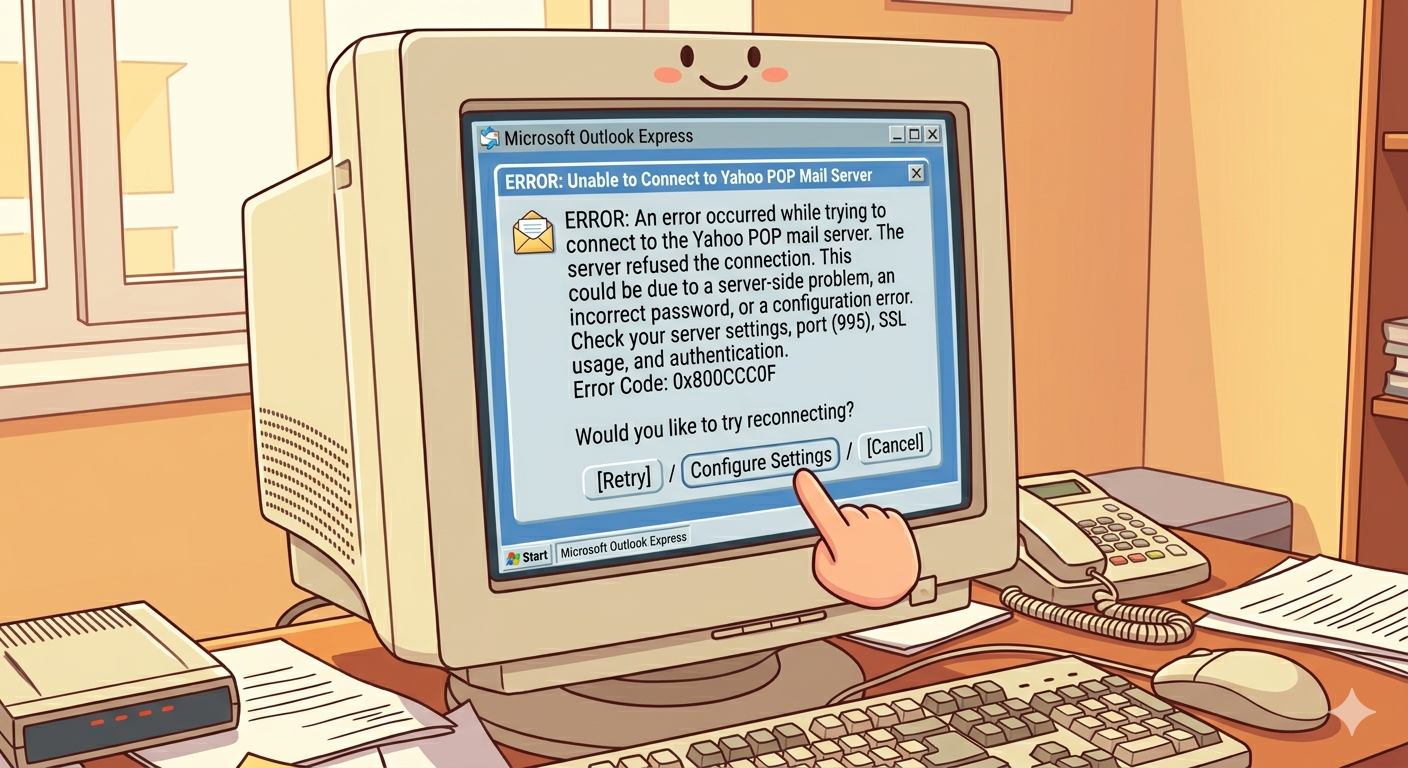
Yahoo POP mail server not connecting is a common issue faced by users while setting up Yahoo Mail accounts in Outlook, Apple Mail, Thunderbird, Android devices, and iPhone Mail applications. POP, also known as Post Office Protocol, allows users to download emails from Yahoo mail servers directly onto their devices for offline access and local storage. When the Yahoo POP mail server fails to connect correctly, users may experience problems such as failed email downloads, repeated password prompts, synchronization errors, or timeout issues.
Yahoo Mail remains one of the most widely used email services globally because of its simple interface and reliable communication features. However, incorrect server settings, outdated passwords, internet issues, or security restrictions can prevent successful POP synchronization.
Even a small configuration mistake inside the email application can completely interrupt incoming email access and create communication delays. Understanding why Yahoo POP mail server connections fail helps users troubleshoot problems effectively while restoring stable email functionality quickly and securely.
Common Reasons Behind Yahoo POP Mail Connection Problems
Yahoo POP synchronization issues usually occur because of incorrect account settings, authentication failures, or communication problems between the email application and Yahoo servers. Even small setup errors can stop incoming emails entirely.
Below are some common causes of Yahoo POP mail server connection failures:
- Incorrect Yahoo POP incoming server entered during account setup
- Wrong POP3 port number configured inside email applications
- Invalid Yahoo account password causing authentication failures repeatedly
- SSL encryption disabled or configured improperly during synchronization
- POP access disabled inside Yahoo Mail account security settings
- Weak internet connection causing repeated timeout communication errors
- Firewall or antivirus blocking secure POP server communication traffic
- Outdated email applications lacking modern Yahoo security compatibility
- Corrupted Outlook or Mail profiles causing synchronization conflicts
- Two-step verification blocking standard POP login attempts completely
One major reason behind Yahoo POP connection problems involves password changes. Many users update their Yahoo account passwords online but forget to modify saved credentials inside Outlook or other mail applications afterward.
Yahoo security systems may also block sign-in attempts from older email applications that do not support updated authentication methods or secure encryption protocols properly.
Another common issue occurs when POP access remains disabled inside Yahoo Mail settings, preventing incoming email synchronization entirely.
Identifying Symptoms Showing Yahoo POP Server Problems
Users usually notice several warning signs when Yahoo POP mail servers stop functioning correctly. Recognizing these symptoms early helps reduce communication interruptions and prevents prolonged synchronization failures.
One common symptom is the inability to receive incoming emails despite having a stable internet connection. Since POP controls incoming mail retrieval, users may still send emails successfully while downloads fail completely.
Repeated password prompts are another strong indicator of POP synchronization issues. Email applications continuously request Yahoo login credentials because authentication attempts keep failing repeatedly.
Connection timeout errors frequently appear when the application cannot establish secure communication with Yahoo mail servers successfully. Weak network connections, blocked ports, or disabled SSL encryption often trigger these failures.
Some users encounter messages such as “Cannot connect to POP server,” “Yahoo server unavailable,” or “Authentication failed.” These warnings usually indicate incorrect configuration details or blocked communication.
Delayed email synchronization is another common symptom. Emails may arrive hours later than expected because the application repeatedly struggles to connect with Yahoo servers.
In severe situations, users may experience duplicate email downloads, missing messages, or complete synchronization failures affecting both personal and professional communication activities.
Businesses or freelancers relying heavily on Yahoo Mail communication may additionally experience productivity disruptions if synchronization problems remain unresolved for long periods.
Correct Yahoo POP Mail Settings Required Properly
Accurate POP configuration is extremely important for successful synchronization with Yahoo Mail accounts. Incorrect settings remain one of the leading causes of connection failures.
Typical Yahoo POP mail settings usually include:
- Incoming Mail Server: pop.mail.yahoo.com
- POP3 Port Number: 995
- SSL Encryption: Enabled properly
- Username: Full Yahoo email address
- Password: Current Yahoo Mail account password
- Authentication: Password authentication enabled successfully
Port 995 is recommended because it supports secure SSL-encrypted communication between email applications and Yahoo mail servers.
Correct username formatting is also extremely important. Most email applications require the complete Yahoo email address rather than only the username portion during authentication.
Users should additionally verify outgoing SMTP settings because incorrect outgoing mail configuration may interfere with overall email account functionality.
Another useful setting involves enabling “Leave messages on server.” POP normally downloads and removes emails from the server automatically, so enabling this option allows users to access emails safely across multiple devices.
Yahoo users with two-step verification enabled may additionally need to generate app-specific passwords because regular account passwords may not work correctly inside older email applications.
Troubleshooting Yahoo POP Mail Connection Problems Successfully
Fixing Yahoo POP synchronization problems usually requires systematic troubleshooting to identify the exact source of the communication failure. Most POP issues can be resolved successfully through careful verification procedures.
The first troubleshooting step should involve checking internet connectivity carefully. Weak Wi-Fi signals or unstable mobile data connections frequently interrupt secure communication with Yahoo mail servers.
Users should then review all POP configuration details carefully inside their email applications. Incorrect server names, usernames, passwords, ports, or SSL settings commonly cause synchronization failures.
Re-entering account passwords manually is another important troubleshooting method because stored credentials often become outdated after password changes.
Restarting the computer, router, or mobile device may additionally help resolve temporary network conflicts affecting POP communication.
Updating Outlook, Thunderbird, Apple Mail, Android Mail, or iPhone software is equally important because outdated applications may not support Yahoo’s modern security requirements fully.
Temporarily disabling antivirus email scanning or firewall filtering can help determine whether security software blocks secure POP communication unexpectedly.
Removing and re-adding the Yahoo Mail account may additionally resolve persistent synchronization problems caused by corrupted account profiles or incomplete configuration files.
Users should also confirm whether POP access remains enabled directly inside Yahoo account settings because security policies may disable POP functionality automatically.
Generating app-specific passwords is often necessary when two-step verification remains enabled because Yahoo blocks regular password authentication for many third-party applications.
Preventing Future Yahoo POP Synchronization Problems
Preventing Yahoo POP mail server issues requires proactive maintenance, updated software, and proper account management practices. Small preventive measures can significantly improve long-term email reliability.
Users should always update stored credentials immediately after changing Yahoo account passwords. Many synchronization failures occur because email applications continue using outdated saved passwords automatically.
Keeping email applications and operating systems updated regularly is equally important because updates improve compatibility with evolving encryption technologies and Yahoo security standards.
Using SSL encryption for all POP communication helps improve account security while reducing synchronization issues caused by insecure server connections.
Backing up important emails and account settings regularly provides additional protection against accidental mailbox corruption or synchronization failures.
Avoiding unsupported third-party email plugins also helps improve synchronization stability because some extensions interfere with standard POP communication unexpectedly.
Maintaining stable internet connectivity through reliable Wi-Fi or wired networks contributes significantly to long-term email synchronization performance.
Users should additionally monitor mailbox storage capacity because full inboxes may interfere with successful synchronization or incoming email retrieval.
Professional users relying heavily on Yahoo Mail communication should periodically test POP functionality to identify configuration problems before major workflow disruptions occur.
Resolving Yahoo POP Mail Server Problems Successfully
Yahoo POP mail server not connecting can create major communication challenges for both personal and professional users. Since POP controls incoming email retrieval, proper configuration remains essential for maintaining stable and reliable inbox access.
Fortunately, most Yahoo POP synchronization problems result from manageable causes such as incorrect server settings, outdated passwords, disabled SSL encryption, outdated applications, or network communication issues. Careful troubleshooting and accurate configuration usually restore functionality successfully.
Understanding how Yahoo POP settings work helps users identify problems faster while improving long-term email reliability. Verifying server details, enabling SSL encryption, updating software, and maintaining secure authentication settings are essential practices for dependable email communication.
Modern email providers continue strengthening security standards to protect users against cyber threats and unauthorized access attempts. As a result, updated applications and encrypted communication methods have become increasingly important for successful POP synchronization.
By following proper setup procedures and maintaining proactive account management, users can reduce future Yahoo POP mail server connection failures while improving the reliability, security, and efficiency of their overall email communication experience.
Also Read: Office 365 SMTP Relay Not Working
Source: Fix POP or IMAP client sending and receiving issues | Yahoo Help