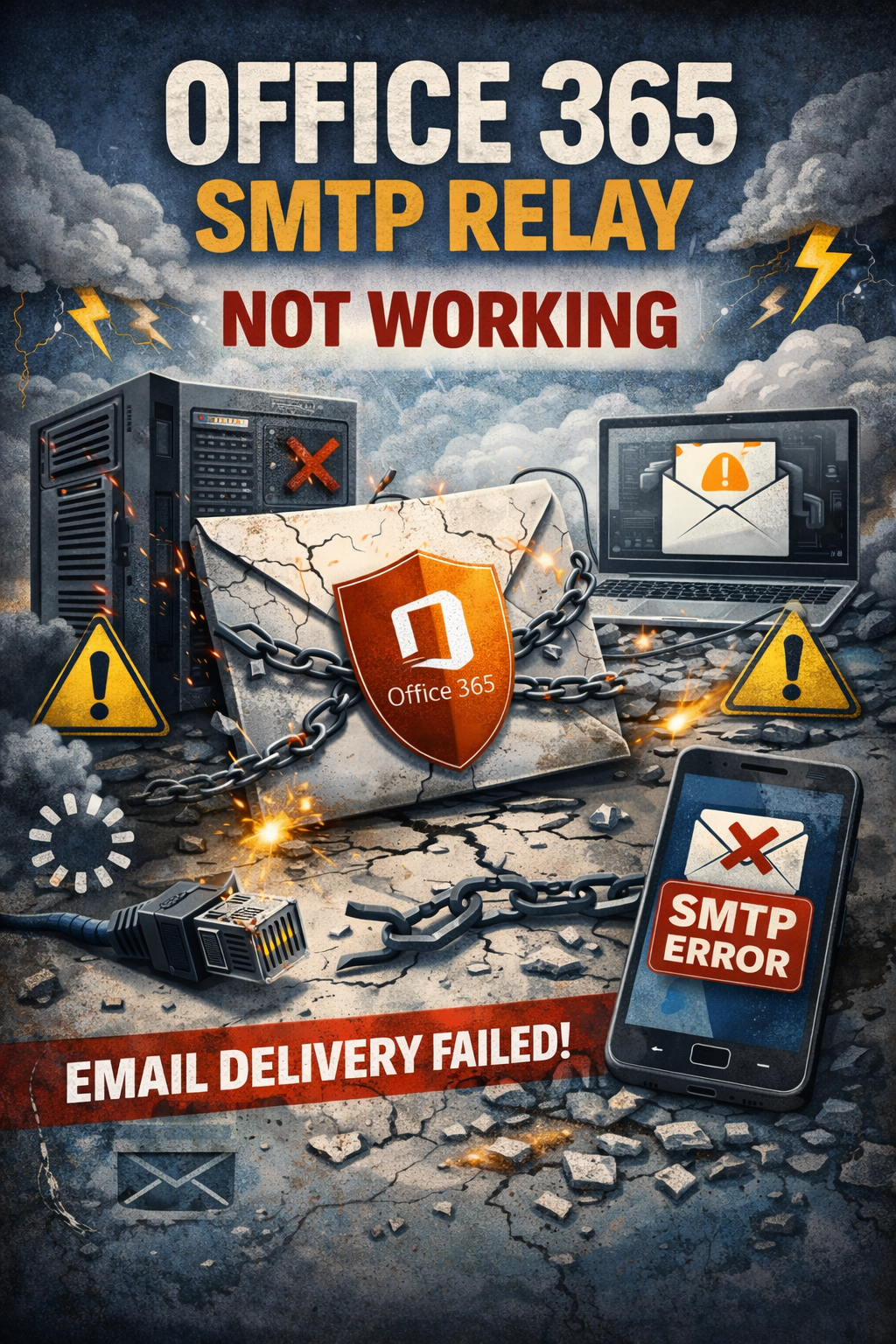
Office 365 SMTP relay not working is a common problem experienced by businesses, IT administrators, and users who rely on Microsoft 365 for sending emails through applications, printers, scanners, websites, and third-party systems. SMTP relay allows devices and software to send outgoing emails through Microsoft 365 mail servers without using the Outlook interface directly. When SMTP relay fails, organizations may experience undelivered emails, connection timeout errors, authentication failures, or disruptions in automated communication workflows.
SMTP, also known as Simple Mail Transfer Protocol, is responsible for transferring outgoing emails between devices and mail servers. Microsoft 365 offers SMTP relay services for organizations that need automated email communication for invoices, notifications, alerts, reports, customer messages, and scan-to-email functionality. However, even small configuration errors can stop SMTP relay from functioning correctly.
Modern Microsoft security policies have also increased the complexity of SMTP relay configuration. Stronger encryption standards, authentication requirements, spam filtering systems, and network restrictions now play an important role in successful email delivery.
Understanding why Office 365 SMTP relay stops working helps users troubleshoot issues effectively while restoring stable and secure email communication quickly.
Common Reasons Behind Office 365 SMTP Relay Failures
SMTP relay issues usually occur because of incorrect configuration settings, authentication problems, or network restrictions. Even properly configured mailboxes may fail if relay permissions or security settings are incorrect.
Below are some common causes of Office 365 SMTP relay problems:
- Incorrect SMTP server address configured inside applications improperly
- Wrong SMTP relay port number selected during setup process
- SMTP AUTH disabled within Microsoft 365 mailbox settings completely
- Invalid username or outdated password causing authentication failures
- TLS encryption disabled or configured incorrectly inside applications
- Firewall restrictions blocking outbound SMTP communication traffic
- Multi-factor authentication interfering with standard SMTP login methods
- Public IP address not authorized for SMTP relay access
- Outdated applications lacking compatibility with Microsoft security protocols
- Spam protection policies blocking suspicious outgoing email activity
One major reason behind SMTP relay failures involves Microsoft disabling legacy authentication methods for older applications and devices. Many outdated systems continue attempting to connect using unsupported authentication protocols, resulting in repeated connection failures.
Another common issue involves incorrect Exchange Online connector configuration. Organizations using SMTP relay through connectors must ensure public IP addresses, DNS settings, and approved domains are configured properly.
Microsoft may also temporarily block relay functionality if unusual email activity triggers spam or abuse detection systems.
Identifying Symptoms Showing SMTP Relay Configuration Problems
Users and administrators usually notice several warning signs when Office 365 SMTP relay stops functioning correctly. Recognizing these symptoms early helps reduce communication interruptions and operational delays.
One common symptom is failed outgoing email delivery from printers, scanners, websites, or automated business systems. Devices attempt to send messages but fail to complete transmission successfully.
Authentication failure messages frequently appear during SMTP communication attempts. Applications may display errors such as “535 Authentication Failed” or “Unable to Relay” because Microsoft rejects the login request.
Connection timeout errors are another common symptom. These occur when applications cannot establish stable communication with Microsoft 365 SMTP servers due to blocked ports, firewall restrictions, or incorrect encryption settings.
Some organizations notice delayed automated notifications, missing invoices, or failed customer communication because SMTP relay processes remain interrupted.
Bounce-back notifications containing SMTP error codes such as 550, 554, or 421 are also common indicators of relay configuration problems. These error messages often provide useful details about authentication or permission failures.
Repeated password prompts may additionally occur because applications continuously fail authentication with Microsoft servers.
In severe situations, businesses relying heavily on automated email workflows may experience major operational disruptions affecting internal alerts, customer service, reporting systems, and business communication processes.
Correct Office 365 SMTP Relay Settings Required Properly
Accurate SMTP relay configuration is essential for successful outgoing email communication through Microsoft 365. Incorrect setup details remain one of the leading causes of SMTP relay failures.
Standard Office 365 SMTP relay settings usually include:
- SMTP Server: smtp.office365.com
- SMTP Port Number: 587
- Encryption Method: STARTTLS or TLS enabled
- SMTP Authentication: Enabled when required
- Username: Full Microsoft 365 email address
- Password: Current account password or app password
Port 587 is Microsoft’s recommended SMTP submission port because it supports secure encrypted communication through TLS security protocols.
Organizations using SMTP relay connectors may additionally require:
- Authorized public IP address configuration
- Exchange Online connector setup completed correctly
- SPF DNS records configured properly
- Approved sending domains verified successfully
Correct authentication settings are equally important because Microsoft requires verified credentials before allowing outgoing email transmission through SMTP relay systems.
Users with multi-factor authentication enabled may need to generate app-specific passwords for older devices or applications lacking advanced authentication support.
Applications, printers, and websites should also have “My outgoing server requires authentication” enabled properly to ensure successful SMTP login verification.
Troubleshooting Office 365 SMTP Relay Issues Successfully
Resolving SMTP relay problems usually requires systematic troubleshooting to identify the exact source of the communication failure. Most SMTP relay issues can be fixed successfully through careful configuration verification.
The first troubleshooting step should involve checking internet connectivity and network stability carefully. Weak or unstable internet connections frequently interrupt secure SMTP communication.
Users should then verify all SMTP relay settings inside the affected application or device carefully. Incorrect server names, usernames, passwords, ports, or encryption methods commonly cause relay failures.
Re-entering account credentials manually is another useful troubleshooting method because stored passwords often become outdated after Microsoft account password changes.
Administrators should also confirm whether SMTP AUTH remains enabled for the mailbox inside the Microsoft 365 admin center. Microsoft sometimes disables SMTP authentication automatically for unused or restricted accounts.
Updating applications, printers, scanners, websites, or operating systems is equally important because older software versions may not support Microsoft’s modern TLS encryption standards fully.
Temporarily disabling antivirus email scanning or firewall filtering may help determine whether security software blocks SMTP communication unexpectedly.
If multi-factor authentication remains enabled, generating app passwords may immediately resolve authentication failures for older systems and devices.
Reviewing Exchange Online connectors, SPF records, and DNS configuration also helps ensure Microsoft recognizes outgoing mail traffic as legitimate and authorized properly.
Administrators may additionally use PowerShell tools or Microsoft message trace logs to identify rejected relay attempts, blocked messages, or spam-related restrictions affecting email delivery.
Preventing Future Office 365 SMTP Relay Problems Successfully
Preventing SMTP relay failures requires proactive system management, updated software, and secure authentication practices. Small preventive measures can significantly improve long-term email reliability.
Organizations should regularly update applications, printers, operating systems, and email software to maintain compatibility with Microsoft’s evolving security standards and encryption technologies.
Using dedicated service accounts for SMTP relay communication is another recommended best practice because it improves authentication management while reducing account conflicts.
Administrators should monitor Microsoft 365 security policies regularly because Microsoft frequently updates SMTP authentication requirements and spam protection rules.
Proper firewall configuration remains equally important for maintaining reliable SMTP communication. Network administrators should allow secure outbound SMTP traffic through approved Microsoft ports without unnecessary restrictions.
Regularly reviewing DNS records, SPF configuration, Exchange Online connectors, and mailbox permissions additionally improves email authentication and delivery reliability.
Monitoring outgoing email volume also helps organizations avoid triggering Microsoft spam detection systems unintentionally. Excessive automated email activity may temporarily limit SMTP relay access.
Businesses relying heavily on automated email communication should periodically test SMTP functionality to identify configuration problems before major operational disruptions occur.
Employee training additionally helps reduce manual configuration mistakes during application setup, password updates, or device installation procedures.
Resolving Office 365 SMTP Relay Problems Successfully
Office 365 SMTP relay not working can create serious communication challenges for businesses and organizations relying on automated email systems. Since SMTP relay controls outgoing email transmission from applications and devices, proper configuration remains essential for reliable communication.
Fortunately, most SMTP relay problems result from manageable causes such as incorrect server settings, disabled SMTP AUTH, outdated applications, firewall restrictions, or authentication conflicts. Careful troubleshooting and accurate configuration usually restore functionality successfully.
Understanding how Office 365 SMTP relay works helps users and administrators identify problems faster while improving long-term email reliability. Verifying server details, enabling TLS encryption, updating software, and maintaining secure authentication settings are essential practices for dependable email communication.
Modern cybersecurity standards continue evolving rapidly, making updated encryption methods and secure authentication increasingly important for Microsoft 365 compatibility. Organizations must ensure their systems remain aligned with Microsoft’s latest security requirements.
By following proper setup procedures and maintaining proactive system management, users can reduce future SMTP relay failures while improving the reliability, security, and efficiency of their overall email communication infrastructure.
Also Read: BigFishGames Entertainment Library Provides Endless Casual Gaming Adventures
Source: SMTP Relay to Office 365 is not working – Microsoft Q&A