
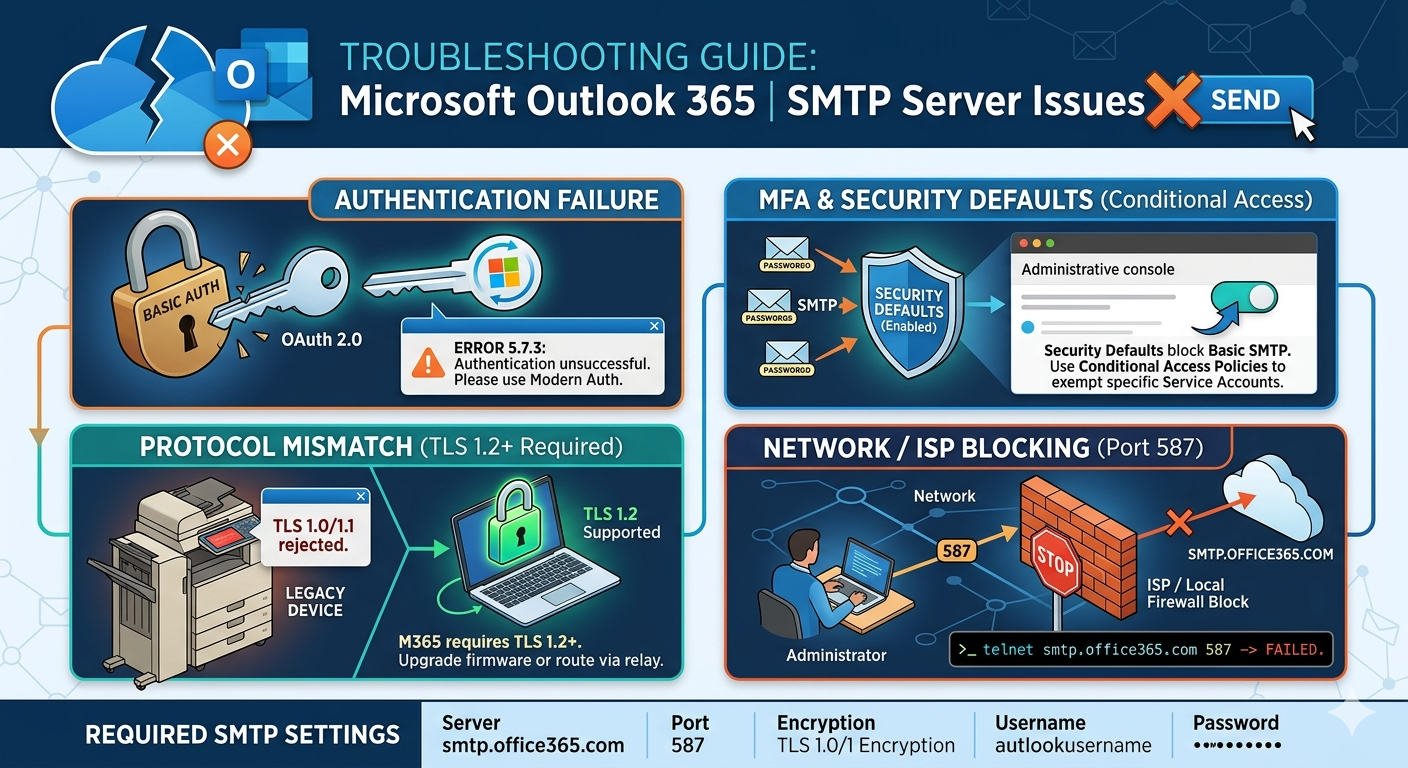
If you are experiencing issues with your Microsoft 365 / Outlook SMTP server settings, you are encountering a highly common problem. Over the last few years, Microsoft has drastically overhauled its mail ecosystem, shifting away from aging, insecure login protocols toward stricter cloud security postures.
When your application, printer, scanner, or third-party client suddenly stops sending emails through smtp.office365.com, it is rarely an accidental outage. It is almost always a configuration mismatch driven by Microsoft’s aggressive push for Modern Authentication.
The Baseline: Correct Microsoft 365 SMTP Settings
Before diving into complex administrative fixes, make sure your software or device isn’t failing over a simple typo. Double-check that your application is configured with these exact connection parameters:
| Parameter | Required Value |
| SMTP Server / Hostname | smtp.office365.com |
| Port | 587 |
| Encryption Method | STARTTLS (or explicit TLS) |
| Username | Your full, primary Microsoft 365 email address |
| Password | Your M365 account password (or an App Password) |
Avoid Port 465: Unlike many legacy email providers, Microsoft 365 does not natively support implicit SSL/TLS on port 465 for standard SMTP client submission. Stick strictly to port 587 with STARTTLS.
If your settings match this chart exactly and your emails are still stuck in the outbox, the issue lies deeper within your Microsoft 365 cloud tenant’s security settings.
1. The Core Culprit: The Death of Basic Authentication
The single most common reason SMTP settings stop working in Outlook 365 is that Microsoft has actively disabled Basic Authentication across its global cloud architecture. Basic Authentication relies on sending a simple username and password with every mail request—a practice that is highly vulnerable to credential harvesting and brute-force attacks.
Microsoft now requires Modern Authentication (OAuth 2.0) for connection tokens.
- The Problem: Many older printers, ERP systems (like SAP or QuickBooks), WordPress plugins, and legacy email clients do not support OAuth 2.0. They only know how to send a plain text password.
- The Symptoms: You will see errors such as
5.7.3 Authentication unsuccessful,5.7.139 Authentication unsuccessful, or continuous, loop-like password prompts.
If your third-party software does not have a distinct option to log in via “Sign in with Microsoft” or “OAuth 2.0”, standard SMTP commands will fail unless you intentionally configure administrative workarounds.
2. Step-by-Step Administrative Fixes
If you manage your own domain or have access to an IT administrator account, you can resolve these SMTP failures using the following backend configurations.
A. Enable “Authenticated SMTP” on the Mailbox
By default, Microsoft turns off the ability for individual mailboxes to use legacy SMTP protocols. Even if your password is 100% correct, Microsoft’s firewalls will reject the login attempt unless this specific toggle is switched on.
- Log in to the Microsoft 365 Admin Center using admin credentials.
- Navigate to Users > Active Users via the left-side menu.
- Locate and click on the specific user account you are trying to use for SMTP.
- In the flyout panel that appears on the right, click on the Mail tab.
- Under the Email apps section, click Manage email apps.
- Check the box explicitly labeled Authenticated SMTP.
- Click Save changes.
Note: Organizational policy updates can take anywhere from 15 minutes to 24 hours to propagate across all global Microsoft servers.
B. Disable “Security Defaults” (Or Navigate Around It)
When a new Microsoft 365 tenant is created, Microsoft automatically activates a feature called Security Defaults. This feature forces Multi-Factor Authentication (MFA) for everyone and completely blocks legacy protocols, including SMTP AUTH.
If Security Defaults are on, standard username/password SMTP is impossible.
- Sign in to the Microsoft Entra admin center.
- Go to Identity > Overview > Properties.
- At the bottom of the page, click Manage security defaults.
- To allow basic SMTP, you would toggle this to Disabled.
🛑 Security Warning: Disabling Security Defaults leaves your entire organization vulnerable if you don’t replace it with something stronger. If you disable it, you should immediately set up Conditional Access Policies (available with Microsoft 365 Business Premium or Entra ID P1/P2 licenses). Create a policy that enforces MFA for all actual human users, but safely exempts your specific SMTP service account based on its specific IP address or trusted location.
3. Network and Protocol Roadblocks
If your cloud settings are perfect but the connection still times out, the bottleneck is likely physical network infrastructure or local protocol mismatches.
TLS 1.2 Handshake Failures
Microsoft 365 completely rejects legacy encryption protocols like TLS 1.0 and TLS 1.1. If you are utilizing an older office copier, an industrial scanner, or legacy server software, its internal firmware might only know how to communicate via TLS 1.0.
- Look up your device’s model number and update its firmware to the latest version to enable TLS 1.2 or TLS 1.3.
- If the hardware cannot be updated, you will have to route its mail through an internal SMTP relay instead of pointing it directly to Microsoft 365.
ISP Port 587 Blocking
Many commercial and residential Internet Service Providers (ISPs) actively block outbound traffic on ports 25 and 587 to prevent rogue malware from turning local machines into automated spam bots.
To test whether your network can even reach Microsoft, open a terminal window (Command Prompt on Windows or Terminal on macOS) and run a basic Telnet command:
Bash
telnet smtp.office365.com 587
- Success looks like: The screen clears, or text appears showing a Microsoft ESMTP server banner. This means your network connection is fine.
- Failure looks like: A perpetual status message stating
Connecting...followed byCould not open connection to the host. This indicates your local router, corporate firewall, or ISP is actively dropping the connection before it ever reaches Microsoft.
4. Alternative Workarounds
If you cannot modify your global tenant security settings or your application is too old to support OAuth 2.0, you can bypass direct SMTP submission entirely using alternative routing methods.
Option A: Direct Send (Port 25)
If your application only needs to send emails to people inside your own company/domain, you can use Direct Send. This method bypasses authentication entirely.
- SMTP Server: Your unique MX record endpoint (e.g.,
yourdomain-com.mail.protection.outlook.com). You can find this in your M365 Admin Center under Domains > DNS Settings. - Port: 25
- Authentication: Disabled (None)
- Requirement: Your public IP address must be listed in your domain’s SPF record (
v=spf1 ip4:YOUR_PUBLIC_IP include:spf.protection.outlook.com -all) to prevent your messages from hitting the spam folder.
Option B: Use a Specialized SMTP Relay Service
For websites (like WordPress e-commerce stores) or transactional applications, relying on Microsoft 365 for heavy SMTP traffic isn’t ideal anyway due to strict daily sending caps. Consider utilizing a dedicated SMTP relay provider such as SendGrid, Mailgun, or Postmark. These platforms offer dedicated SMTP keys that easily bypass the stringent Microsoft Entra ID authentication umbrella.
What specific application or hardware device are you attempting to link to your Outlook 365 SMTP server?
Also Read:Troubleshooting Guide: Fixing Microsoft Outlook 365 SMTP Server Issues
Source: Error when connecting via SMTP client – Exchange | Microsoft Learn