
Implementing SMTP (Simple Mail Transfer Protocol) client submission is a vital requirement for many organizations using Microsoft 365. This configuration allows internal devices—such as multifunction printers, scanners, and networked applications (like CRMs or ERP systems)—to send automated email notifications using a licensed Microsoft 365 mailbox. When this connection fails, productivity halts, leaving crucial reports unsent and automated alerts stuck in the queue.
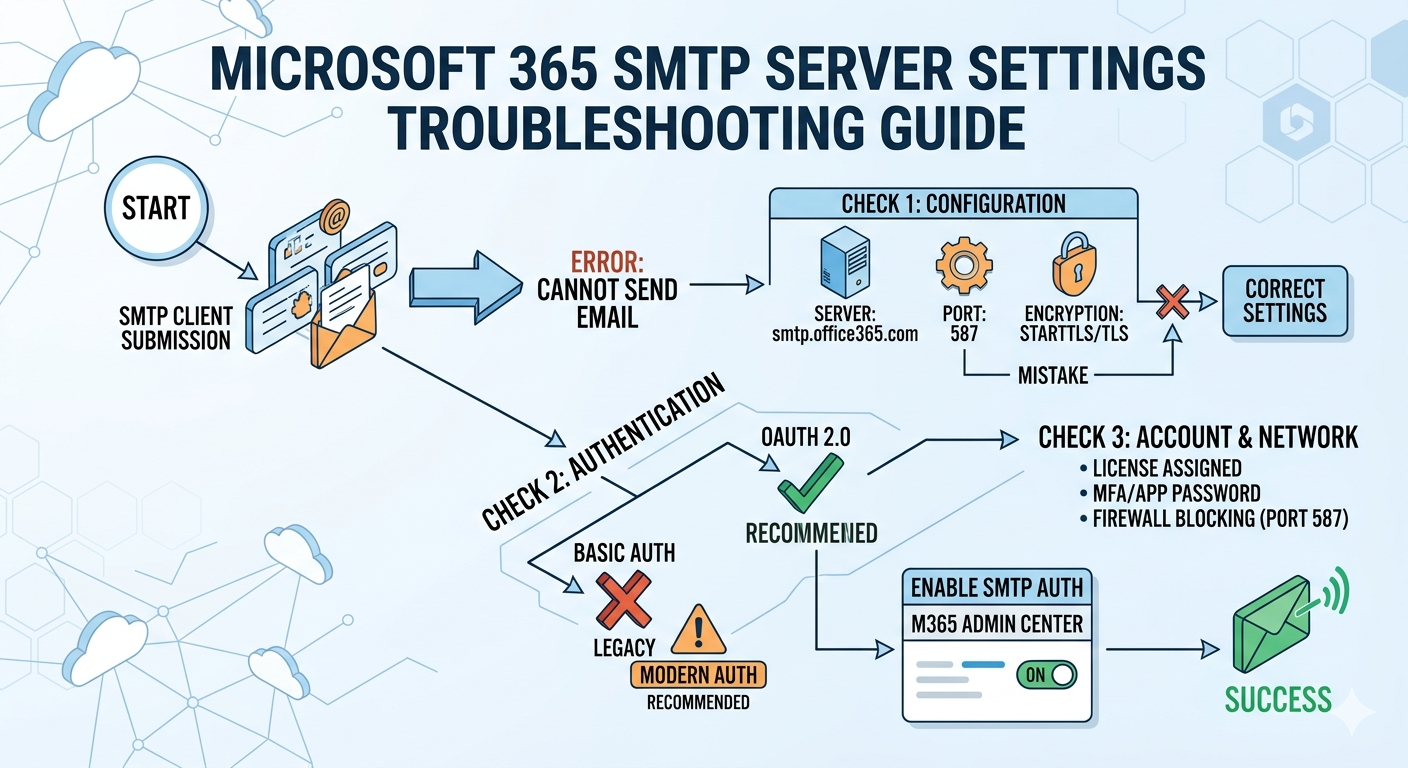
This article provides a structured approach to diagnosing and fixing a ‘not working’ Microsoft 365 SMTP configuration. By following this hierarchical guide, you can pinpoint whether the issue stems from incorrect basic parameters, organization-wide security policies, specific account restrictions, or external network blockages. We will reference the Microsoft 365 SMTP Troubleshooting Guide (refer to the generated flowchart graphic, image_0.png) as we navigate these checks.
Phase 1: Validating Fundamental Configuration
The cornerstone of any functional SMTP setup is ensuring that the receiving server knows who is connecting and how to encrypt the session. When an application reports a generic “Cannot Send Email” error (the starting point in our diagram), the first action is to confirm the basic parameters.
1. The Core SMTP Client Submission Settings
For most devices and applications using Microsoft 365, the required settings are absolute. If your device cannot support these three parameters simultaneously, you may need to investigate alternative sending methods (like SMTP Relay or Direct Send).
- SMTP Server/Hostname:
smtp.office365.com - Port:
587 - Encryption:
STARTTLS(or simply TLS 1.2 or higher).
Common Pitfalls at this Stage: Many legacy systems default to Port 25 (unencrypted) or Port 465 (implicit SSL/TLS). Neither of these is supported for SMTP client submission in Microsoft 365. Ensure your application is set to use Port 587 and that the encryption method is explicitly set to STARTTLS.
2. Verify Credentials and Licensing
A successful SMTP connection requires an authenticated user. You must use the full email address of a valid, licensed Microsoft 365 mailbox (e.g., automailer@yourdomain.com). The password must be current and correctly entered.
Common Pitfalls at this Stage: Using a shared mailbox that does not have a direct license can cause authentication failures. The sending mailbox must have an active Exchange Online license assigned.
Phase 2: Mastering Microsoft 365 Authentication
As highlighted in the Check 2: Authentication section of the graphic (image_0.png), authentication is the most frequent breakpoint in modern SMTP configurations. Microsoft is aggressively phasing out legacy methods in favor of superior security protocols.
1. The Modern Authentication Transition (OAuth 2.0)
Microsoft is strictly enforcing the use of Modern Authentication (OAuth 2.0) and disabling legacy Basic Authentication across all tenants. If your application or device has been working for years and suddenly stopped sending mail around September 2025, it is likely that your system was still using Basic Auth (sending plaintext usernames and passwords).
The recommended fix, marked with a green ‘check’ in our graphic, is to update your application or its email plugin to support OAuth 2.0. This involves registering the application in your Microsoft Entra ID (formerly Azure AD) to receive a secure token, rather than storing a password.
2. Remediation for Legacy Systems (The App Password Loophole)
If your device is older and simply does not support OAuth 2.0 (it requires only a username and password field), you are limited to the legacy path (marked with a red ‘X’ in the graphic). However, you cannot simply use your main account password if Multi-Factor Authentication (MFA) is enabled.
When MFA is active, the standard password will fail in an SMTP client. You must use an App Password. This is a unique, 16-character code generated within the user’s security settings page (mysignins.microsoft.com). It allows that specific legacy application to bypass MFA.
Phase 3: Administrative Organization-Wide Settings
Even if your local settings are correct and you are using OAuth 2.0, an organization-wide administrative toggle might block the connection before it can be validated.
1. Enabling SMTP AUTH Protocol Globally
By default, the protocol that allows clients to submit mail (SMTP AUTH) may be disabled at the tenant level for security. An administrator must explicitly enable it to allow any user to send mail via this method.
An global administrator can verify this by logging into the Microsoft 365 Admin Center > Settings > Org settings > Services tab > Mail flow. Ensure that the checkbox for “Turn off SMTP AUTH protocol for your organization” is unchecked. Note that changes to this setting can take up to 24 hours to propagate completely.
Phase 4: Account-Specific and Network Restrictions
If the issue persists, we must look at variables that are unique to the sending mailbox or the physical network environment.
1. User-Level SMTP AUTH Override
If SMTP AUTH is enabled globally, it can still be blocked on a per-user basis. This override is managed via the Exchange Admin Center (EAC). An administrator must navigate to Recipients > Mailboxes, select the specific mailbox, and then go to the Mailbox tab. Under Email apps, select Manage email apps settings and ensure the Authenticated SMTP toggle is switched ON (as visualized in our illustrative UI in image_0.png).
2. Network and Firewall Blocking (Port 587)
The final checkpoint involves the environment surrounding the physical device. Many corporate firewalls or residential ISPs proactively block outbound traffic on standard email ports (like 25 and 587) to prevent unauthorized spam relays.
You can verify if Port 587 is open from your network by using a command-line tool. On Windows, use PowerShell:Test-NetConnection -ComputerName smtp.office365.com -Port 587 A result of TcpTestSucceeded : True confirms that your network is not the bottleneck. If it fails, your firewall must be configured to allow outbound traffic to smtp.office365.com on Port 587.
Conclusion
Troubleshooting a ‘not working’ Microsoft 365 SMTP configuration is rarely a straightforward task due to the interaction between local app settings and tenant-wide security policies. However, by adopting the hierarchical approach outlined above and visualized in the accompanying guide (image_0.png), most administrators can quickly isolate the failure point.
Start by strictly validating the basic server parameters (Phase 1). Then, dive deep into your authentication method (Phase 2), ensuring you are either using modern OAuth 2.0 or, if forced to use legacy methods, employing an App Password. Finally, confirm that administrative toggles have not blocked the protocol globally or for the specific account (Phases 3 and 4), and that your network environment permits outbound traffic on the required port. Addressing these four phases in order will resolve the vast majority of M365 SMTP submission errors.
Also Read: POP3 Mail Server Settings Not Working
Source: SMTP server for Office 365 settings, port, and auth guide