
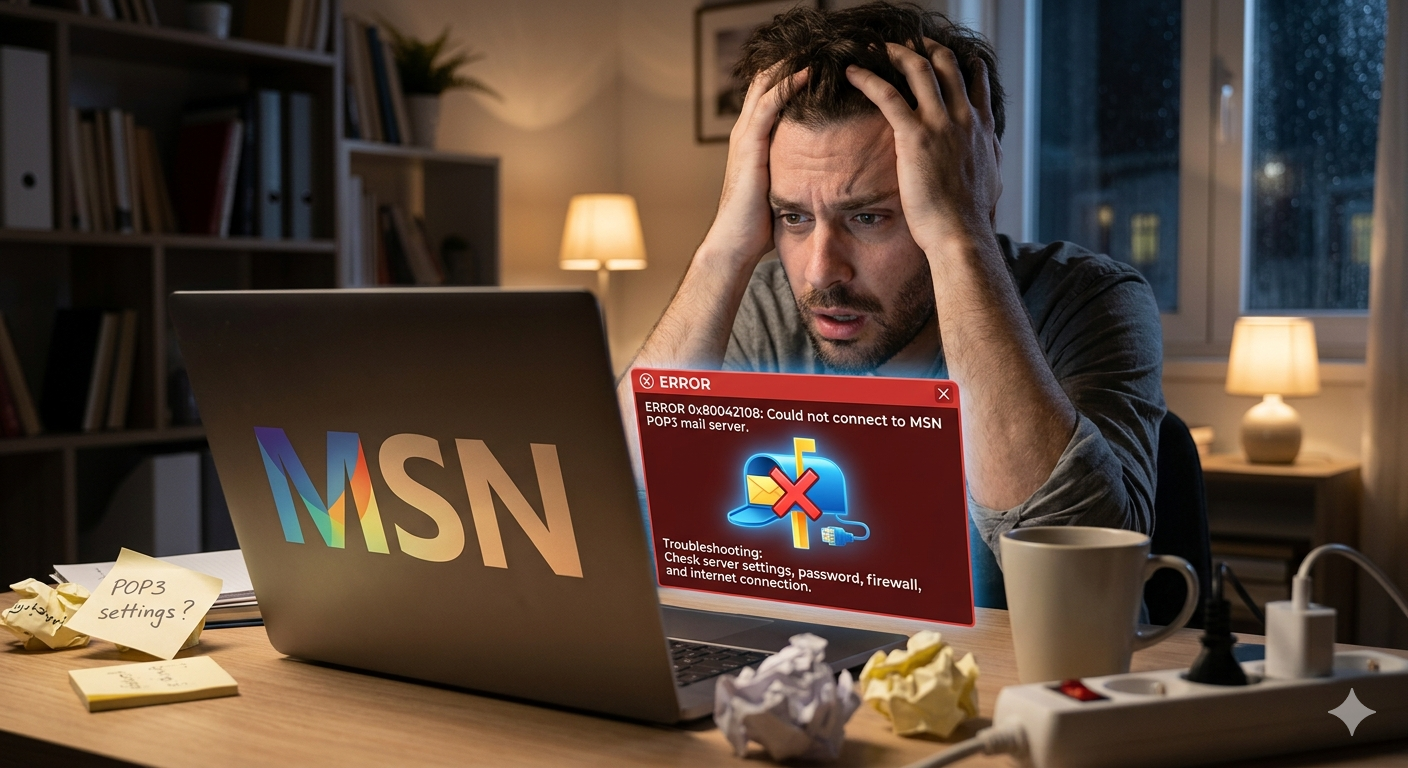
If you’re seeing a variation of the dreaded message, “Cannot connect to the MSN POP3 mail server,” or “Error 0x80042108,” you are not alone. For many long-time users of MSN, Hotmail, and Live.com accounts, relying on older email protocols like POP3 is crucial for archival and specific workflow needs. However, the modern security landscape and Microsoft’s infrastructure evolution have made these connections increasingly fragile. This comprehensive guide will walk you through everything you need to know to diagnose and repair your MSN POP3 connection.
Understanding the Architecture and Conflict
To fix the problem, you must understand why it’s breaking.
POP3 (Post Office Protocol 3) is one of the original Internet message protocols. It is designed with a “download-and-delete” philosophy. Your email client (e.g., Outlook, Thunderbird, or an old mobile device) connects to the server, downloads all new messages, and typically removes them from the server. This makes it ideal for users who primary access mail on a single machine.
The Conflict: Microsoft, like most major providers, wants users to move away from POP3. They advocate for IMAP (Internet Message Access Protocol) or Exchange ActiveSync/Microsoft Exchange, which are built for a modern, multi-device world. Unlike POP, IMAP leaves the message on the server and synchronizes status (read/unread, replied) across all devices.
The security issue is paramount. POP3 was designed in an era before ubiquitous hacking. By default, it sends data, including your credentials, in plain text. Over the last few years, Microsoft has systematically disabled “Basic Authentication” and required users to use newer, more robust encryption, specifically OAuth 2.0 (Modern Auth). If your older client or its configuration doesn’t support Modern Auth, it will simply fail to connect, regardless of how many times you re-type your correct password.
Step-by-Step Troubleshooting Checklist
Before you make any drastic changes, follow this list in order. Over 90% of connection failures are resolved within the first three steps.
Step 1: Confirm Global Service Outages
The problem might not be you. Start by verifying if Microsoft is experiencing a wider service degradation.
- Action: Visit the official Microsoft Office Service Status page (
https://portal.office.com/servicestatus) and look for “Outlook.com.” If it shows an amber or red warning, wait for them to fix it.
Step 2: The Credential Verification
This is the most common pitfall. Have you changed your Microsoft account password recently (perhaps on your Xbox, your Windows login, or your phone)?
- Action: To be absolutely certain, open a web browser, go to
outlook.com, and log in using your MSN email address and current password. If you cannot log in there, you have a password issue, not a server setting issue. Reset your password in the browser first.
Step 3: Two-Step Verification (2SV) and App Passwords
This is the single largest cause of modern “Authentication Failed” errors on old POP3 setups. If you have, or recently enabled, Two-Step Verification on your Microsoft account, your standard password will never work in an old POP client.
- The Conflict: Old POP clients cannot prompt you for the second factor (like a text code).
- The Solution: Generate an App Password.
- Log into your Microsoft account security page (
account.microsoft.com/security). - Click Advanced security options.
- Find App passwords and click Create a new app password.
- A long, unique string (e.g.,
abcd efgh ijkl mnop) will be displayed once. Copy it. - Go to your email client’s settings and replace your regular password with this specific App Password.
- Log into your Microsoft account security page (
Core MSN POP3 Server Settings
If your credentials are correct (Step 3), the next likely culprit is misconfigured server settings. Use only these exact, modern, encrypted settings. The old, unencrypted settings (Port 110, pop3.live.com) are unreliable.
Incoming Mail Server (POP3):
- Server Name:
outlook.office365.com - Port: 995
- Encryption Method: SSL/TLS
- Username: Your full MSN email address (e.g.,
user@msn.com) - Password: Your App Password (see Step 3) or your regular password if 2SV is disabled.
Outgoing Mail Server (SMTP):
- Server Name:
smtp.office365.com - Port: 587
- Encryption Method: STARTTLS
- Authentication: Requires Authentication (often a checkbox that reads “My outgoing server (SMTP) requires authentication”). Use the same settings as the incoming server.
Advanced Network and Client Fixes
If your settings are verified and correct, yet the connection still times out or fails (as seen in the accompanying visualization, image_0.png), you must look at local obstructions.
Step 4: Rule Out Firewall and Antivirus Blockage
Third-party security suites often intercept email traffic (POP3 Port 995 and SMTP Port 587) to scan for malware. These interferences frequently cause the connection to drop or time out.
- Action (Test Only): Temporarily disable your antivirus and Windows Firewall. Try to receive mail. If it works, you need to add an exception within your security software for your email client (e.g.,
outlook.exe) or the specific ports.
Step 5: Address Local PST Data File Corruption (Outlook Users)
If you use Microsoft Outlook, it stores all your POP3 email locally in a .pst file. If this file grows too large, or if Outlook closes improperly, the PST file can become corrupted, preventing Outlook from communicating with the server correctly.
- Action: Run the built-in Inbox Repair Tool (scanpst.exe). Search your computer for “scanpst.exe,” open it, browse to your PST file location, and click Start. Repair any errors it finds.
Step 6: Test an Alternative Network
ISPs occasionally block specific, uncommon ports (like SMTP 587) to fight spam.
- Action: Connect your computer to a different network. Try using your phone as a mobile hotspot or use a reputable VPN. If the POP connection suddenly works, your home ISP is likely blocking the mail ports.
The Ultimate Question: Is It Time to Switch to IMAP?
If you have tried every step and your connection is still failing, or if it works intermittently, you are fighting against the current of technological progress. Microsoft is making POP3 difficult to use for a reason.
POP3 only syncs your Inbox. IMAP syncs everything: Sent Items, Drafts, custom folders, and the read/unread status of every message across your computer, your tablet, and your phone.
Recommendation: Consider switching your email client to IMAP settings.
- IMAP Server Name:
outlook.office365.com - IMAP Port: 993
- IMAP Encryption: SSL/TLS
Conclusion
A non-connecting MSN POP3 mail server is a frustration that visually manifests as stress, depicted in our accompanying image of a user confronting error code 0x80042108 (image_0.png). By following this guide, you can systematically remove potential causes. Begin with credential verification and global outages, master the complexities of App Passwords if necessary, and strictly apply the modern outlook.office365.com settings. If all else fails, a transition to IMAP will provide a more stable and modern email experience.
Also Read: Yahoo POP Mail Server Not Connecting
Source: Outlook will not connect to pop email server – Microsoft Q&A