
The iPhone’s Mail app is a powerful tool, allowing us to manage multiple email accounts seamlessly. However, configuring older email protocols like Post Office Protocol version 3 (POP3) can sometimes be a frustrating ordeal. You might find yourself staring at an error message that reads “Cannot Get Mail: The connection to the server failed” or, even more commonly, “Verification Failed.” If this sounds familiar, and your POP email settings are not working on your iPhone, you are not alone.
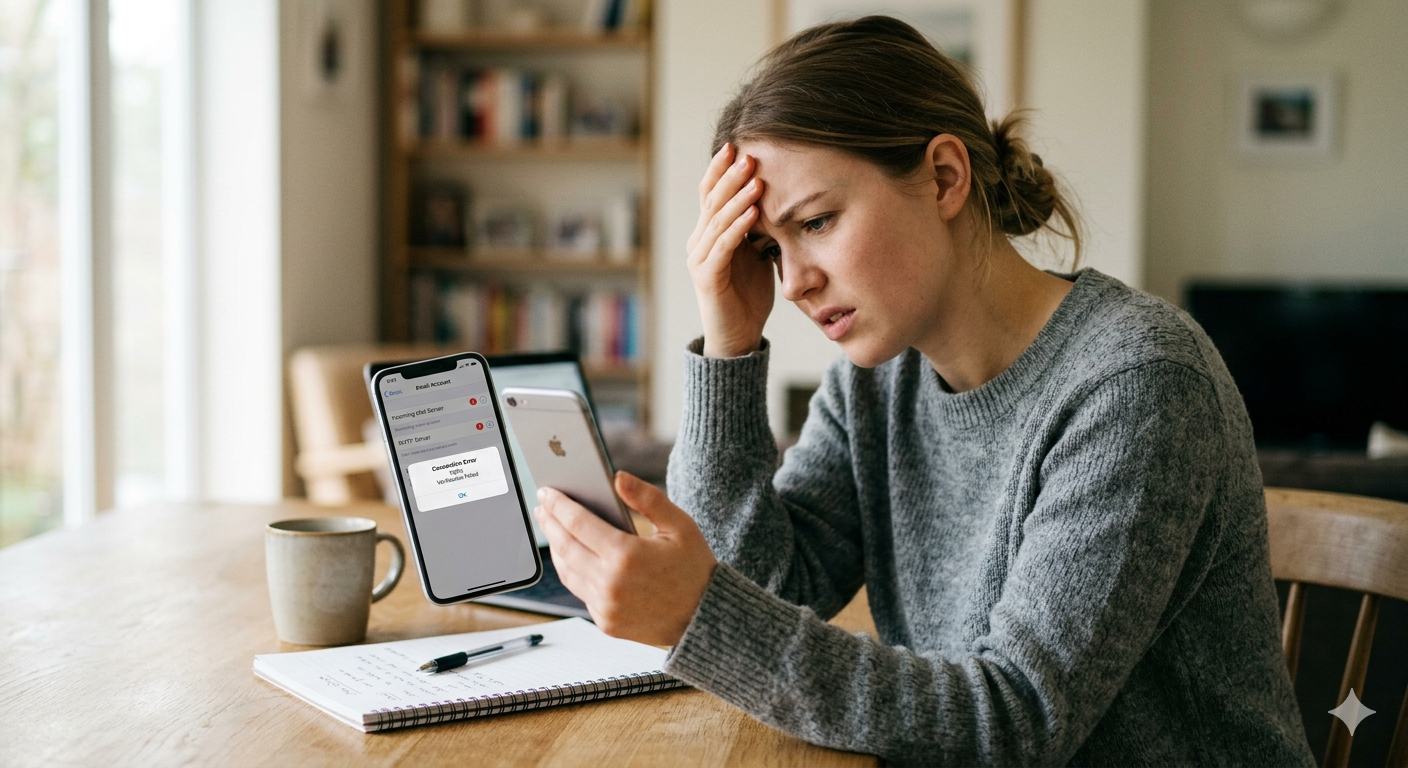
In fact, the moment pictured below—a user rubbing their forehead in frustration while setting up a POP account—is a common scene when dealing with manual server configurations on iOS. The error message on the screen, showing “Verification Failed” during a POP3 setup, is the exact challenge we will solve in this guide.
The image above displays a typical scenario: an iPhone user encountering a verification error while attempting to configure a POP email account manually.
This article will guide you through the complete troubleshooting process, starting from the most basic causes to advanced manual configurations.
1. The Critical Preliminary Check: What is POP3 and Why is it Failing?
Before we dive into the settings, it’s vital to understand what POP3 is and why your provider might not be accepting your connection.
Unlike Internet Message Access Protocol (IMAP), which keeps your email synchronized across multiple devices, POP3 is designed to download emails from the server onto a single device. Once downloaded, depending on your settings, those emails might be deleted from the server entirely.
Because POP is an older protocol, many email providers (like Gmail, Outlook/Hotmail, Yahoo) now disable POP access by default to encourage the use of the more modern, secure IMAP.
The very first step you must take is visiting your email provider’s webmail portal in a browser (e.g., mail.google.com or outlook.office365.com).
- Log in with your credentials.
- Navigate to your account Settings or Options.
- Look for a section labeled POP/IMAP Download or similar.
- Ensure that POP is explicitly enabled. If it is disabled, your iPhone will never connect, regardless of how perfect your settings are.
2. Verify Your Login Credentials and Network Connection
If POP is enabled on the server, the next point of failure is often the simplest: an incorrect password or a weak network connection. Since POP requires manual input of every detail, a single typo in your email or password will cause the failure shown in the image.
- Network Stability: Make sure your iPhone has a stable internet connection. Try loading a website in Safari to confirm. If you are on a restricted corporate Wi-Fi or behind a strong firewall, this might block the specific ports POP uses. Switch to cellular data temporarily to rule this out.
- Password Lockout: Be cautious about attempting too many times. Your provider may lock your account after repeated failed login attempts. Verify your password on webmail first.
3. The Comprehensive Guide to Manual POP Setup on iPhone
If you are confident that POP is enabled and your credentials are correct, we must manually verify every line of the account configuration. iOS often tries to auto-configure, which works fine for IMAP, but rarely for POP.
Step A: Navigating to the Mail Account Settings
- Open Settings on your iPhone.
- Scroll down and tap Mail.
- Tap Accounts.
- If the account is already added and failing, tap on the Account Name (it may say ‘Mail’ below it). Then tap the Account field again to open the configuration details.
- If you are adding it new, tap Add Account, choose Other, then Add Mail Account. After entering your basic details, you will select the POP tab at the top.
Step B: The Incoming Mail Server (POP)
This is the phase of the setup process depicted in our reference image. Pay extremely close attention to the following fields:
- Host Name: This must be precise (e.g.,
pop.gmail.com,outlook.office365.com,pop3.strato.de). Do not guess. - User Name: In 99% of cases, this must be your full email address (
yourname@example.com). - Password: Re-enter your password carefully. Typos here are the number one cause of “Verification Failed.”
After entering these details, the iPhone will attempt to verify them. This is when the spinning wheel appears and the error shown in the image might manifest. Let’s make sure the next section is correct, too, because verification won’t complete without it.
Step C: The Outgoing Mail Server (SMTP)
A common mistake is assuming the outgoing settings are correct because the error is about ‘getting mail’. Your iPhone needs a functional outgoing (SMTP) server even to complete the verification process.
- Tap on the SMTP field under the Outgoing Mail Server section.
- Tap on your provider’s primary SMTP server (e.g.,
smtp.gmail.com). - Ensure the details match the outgoing requirements for your specific provider:
- Host Name: (e.g.,
smtp.gmail.com). - User Name: Your full email address.
- Password: The same password as above.
- Host Name: (e.g.,
- Use SSL: Must be turned ON.
- Authentication: Usually set to Password.
- Server Port: This is critical. For secure SMTP (SSL), this is typically 465 or 587.
Tap Done. Your iPhone will verify these settings. If it fails again, we must proceed to advanced settings.
Step D: Advanced Incoming Settings (The Finisher)
If the main verification still fails, we need to fine-tune the port numbers for the incoming (POP) connection, which are hidden in a deeper menu.
- While in the Account configuration screen, tap Advanced (it’s at the very bottom).
- Under Incoming Settings:
- Use SSL: This must be turned ON for almost all modern providers.
- Authentication: Set to Password.
- Server Port: This must match your provider’s requirement for secure POP3. The standard secure POP3 port is 995. If SSL is off, it is 110, but this is rare and insecure.
- While in this menu, also address the “Delete from server” behavior that is unique to POP. Tap Delete from server and choose:
- Never: (Recommended) Keep the emails on the server until you manually delete them elsewhere.
- Seven days: Automatically deletes emails from the server one week after the iPhone downloads them.
After making these changes, navigate back to the main Account screen and tap Done. The iPhone will perform a final verification. If the settings are correct, you will see a success message, and you can now receive mail.
Summary Checklist for Troubleshooting
If you still find yourself as frustrated as the user in the picture, review this final checklist of the most common POP pitfalls:
- POP is Enabled on the Webmail Portal (e.g., Gmail/Outlook settings).
- Username is the Full Email Address.
- Incoming Port is 995 (with SSL ON).
- Outgoing SMTP Port is 465 or 587 (with SSL ON).
- Password is confirmed correct.
Also Read: MSN POP3 Mail Server Not Connecting