
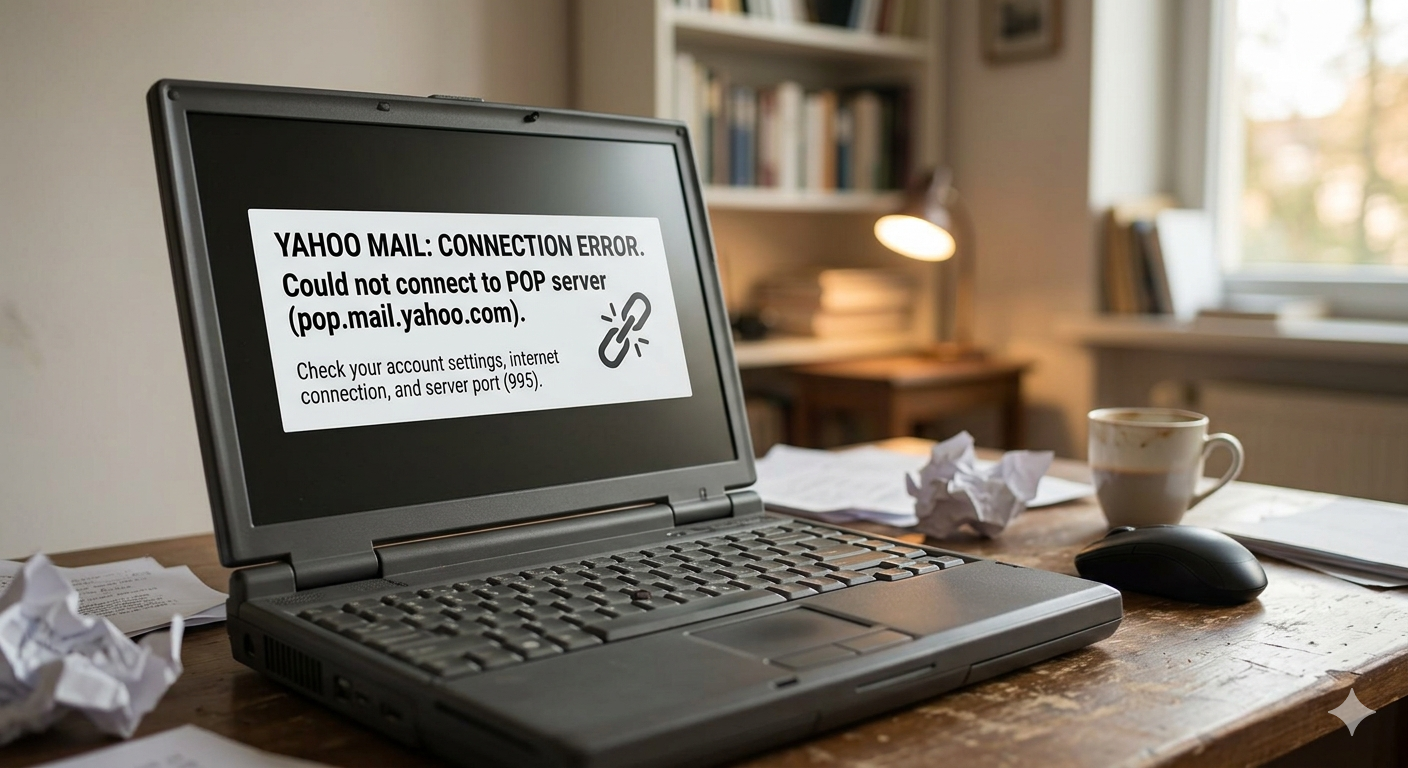
For many users, email remains the cornerstone of digital communication. We rely on it for work, personal updates, and account verifications. When your email client, whether it’s Outlook, Thunderbird, or a mobile app, fails to connect to the mail server, it can be a source of immediate frustration. The specific error message “YAHOO MAIL: CONNECTION ERROR. Could not connect to POP server (pop.mail.yahoo.com)” (as shown in the accompanying image) is a common one, signaling a disconnect between your device and Yahoo’s infrastructure.
This guide is designed to deconstruct this error and provide a systematic, step-by-step troubleshooting protocol. We will move from the simplest, most common fixes to more advanced technical checks, ensuring that by the end, you have either resolved the issue or have a clear understanding of its source. We will structure this journey across key areas: immediate checks, credential verification, configuration settings, network diagnostics, and advanced security.
Section 1: Immediate and Essential Checks
Before delving into complex settings, let’s address the low-hanging fruit. These simple steps often resolve what seems like a major problem.
- Check for Yahoo Service Outages: This is your very first step. Sometimes the problem isn’t you; it’s them. Use a third-party service like DownDetector or check Yahoo’s official social media support channels to see if there is a known service disruption impacting POP access. If millions of users are reporting issues, your best course of action is patience.
- Verify Your Internet Connectivity: A basic check, but crucial. Ensure your computer or device has a stable and active internet connection. Try opening a few diverse web pages to confirm. If your internet is down, your mail client cannot connect, regardless of its settings. A quick router reboot can also clear minor local network glitches.
- Perform a Full System Restart: The oldest trick in the IT playbook is often the most effective. A restart clears temporary cache files, closes conflicting processes, and forces your system to re-establish all network connections from scratch. This includes your email client’s network stack.
Section 2: Credential and Security Verification
The most common reason for this error, especially if it appears suddenly, is an issue with your credentials or the security protocols governing them. Yahoo has implemented stricter security measures in recent years, rendering older authentication methods obsolete.
- Validate Your Username and Password: Don’t assume. Log in to your Yahoo account directly through a web browser. If your password is rejected there, you must reset it within the browser. Once changed, update it immediately in your email client’s settings.
- Address Yahoo’s “App Password” Requirement (Most Critical Fix): If you use an older email client or application that doesn’t support Yahoo’s modern OAuth authentication (e.g., older versions of Outlook, some mobile mail apps), a simple password won’t suffice. You must generate and use an App Password.
- How to Generate: Go to Yahoo Mail in your web browser. Access ‘Account Security’ settings. Look for the ‘Generate app password’ link. Name the application (e.g., “Thunderbird Desktop”), and Yahoo will provide a unique 16-character password.
- How to Use: In your email client, where you normally enter your account password, enter this newly generated 16-character code instead. This is a secure, per-app credential.
- Review MFA (Multi-Factor Authentication): If you have Two-Step Verification active on your Yahoo account, ensuring you are using a correct, freshly generated app password is even more critical. Older clients cannot process the second verification factor directly, so the app password bypasses this requirement only for that application.
Section 3: Deep Dive into Configuration Settings
If your credentials are good and service is active, the problem is likely misconfigured POP3 server settings. The error message explicitly mentions the server (pop.mail.yahoo.com). Let’s verify every detail. These must match Yahoo’s exact specifications.
- Incoming Mail Server (POP3):
pop.mail.yahoo.com - Incoming Port:
995 - Security Type / SSL: Must be set to
SSLorSSL/TLS. - Authentication: The incoming server requires password authentication.
- Username: Ensure this is your full email address (e.g.,
user@yahoo.com).
Crucial Common Mistake Check: Make sure you have the correct port selected. Using the default POP port (110) will not work with Yahoo and will trigger a connection failure error. Your client must be configured to use SSL/TLS on port 995.
Section 4: Network Diagnostics and Interference
If your settings are perfect and your credentials valid, the bottleneck might be between your device and the Yahoo server. This can be caused by software conflicts or localized network issues.
- Isolate Antivirus and Firewall Interference: Overly zealous security software can sometimes mistake legitimate email connections for malicious activity. Temporarily disable your third-party antivirus and Windows Firewall (or equivalent). Immediately attempt a send/receive. If it works, you have found the culprit. You must then whitelist (create an exception for) your email client within that security software. Remember to re-enable your security software immediately after testing.
- Use a Different Network Connection: Isolate a router-level or ISP-specific problem. If your desktop computer is failing, try connecting via a different Wi-Fi network (like a public hotspot) or use your phone as a mobile hotspot. If the connection succeeds on a different network, the issue resides with your primary router or ISP blocking the relevant ports (like port 995).
- Test SMTP (Outgoing) Connections: While the error is for the incoming server, a related problem with the SMTP (outgoing) server can sometimes hint at broader network blocks. Verify your outgoing settings:
- Outgoing Mail Server (SMTP):
smtp.mail.yahoo.com - Outgoing Port:
465(secure) or587(TLS). - Outgoing SSL: Required.
- Outgoing Authentication: Must be enabled (it usually uses the same credentials as incoming).
- Outgoing Mail Server (SMTP):
Section 5: The Ultimate Fix—Repair or Re-Recreate the Account
Sometimes, the local data file where your mail client stores settings becomes corrupt. When this happens, a simple setting tweak isn’t enough.
- Use Your Client’s built-in “Repair” Function: Many modern versions of Outlook have a “Repair Account” feature. This initiates an auto-discovery process that attempts to contact the server with minimal credentials and reset your settings.
- Completely Re-add the Account (Most Effective Final Step): If all else fails, remove the existing Yahoo Mail account from your mail client. Then, select the option to add a new account. Instead of choosing POP/IMAP, look for a preset for “Yahoo Mail” or “Yahoo.” This often uses the modern, more robust OAuth (web login) method rather than manual POP/IMAP entry. This process is generally more reliable and automatically handles all port and server configurations. Once added via this modern protocol, connection errors of this nature usually disappear completely.
Conclusion and Resolution
A connection failure error for Yahoo Mail’s POP server can seem daunting, but it typically boils down to one of three categories: credential mismatches (the wrong type of password), configuration errors (wrong port or SSL setting), or security interference.
By methodically following this systematic guide—starting with the easiest checks and moving through credential validation and port-level configuration—you can isolate and fix the vast majority of POP connection problems. When you have successfully addressed the root cause and updated your settings, your email client should display a positive success status. Instead of a red ‘X’, you will see a green ‘CONNECTED’ indication, and your inbox will begin to populate once more. The effort invested in systematic troubleshooting ensures a faster, more permanent fix, allowing you to return to seamless communication.
Also Read: SMTP Server Settings Not Working Office 365
Source: Fix POP or IMAP client sending and receiving issues | Yahoo Help