
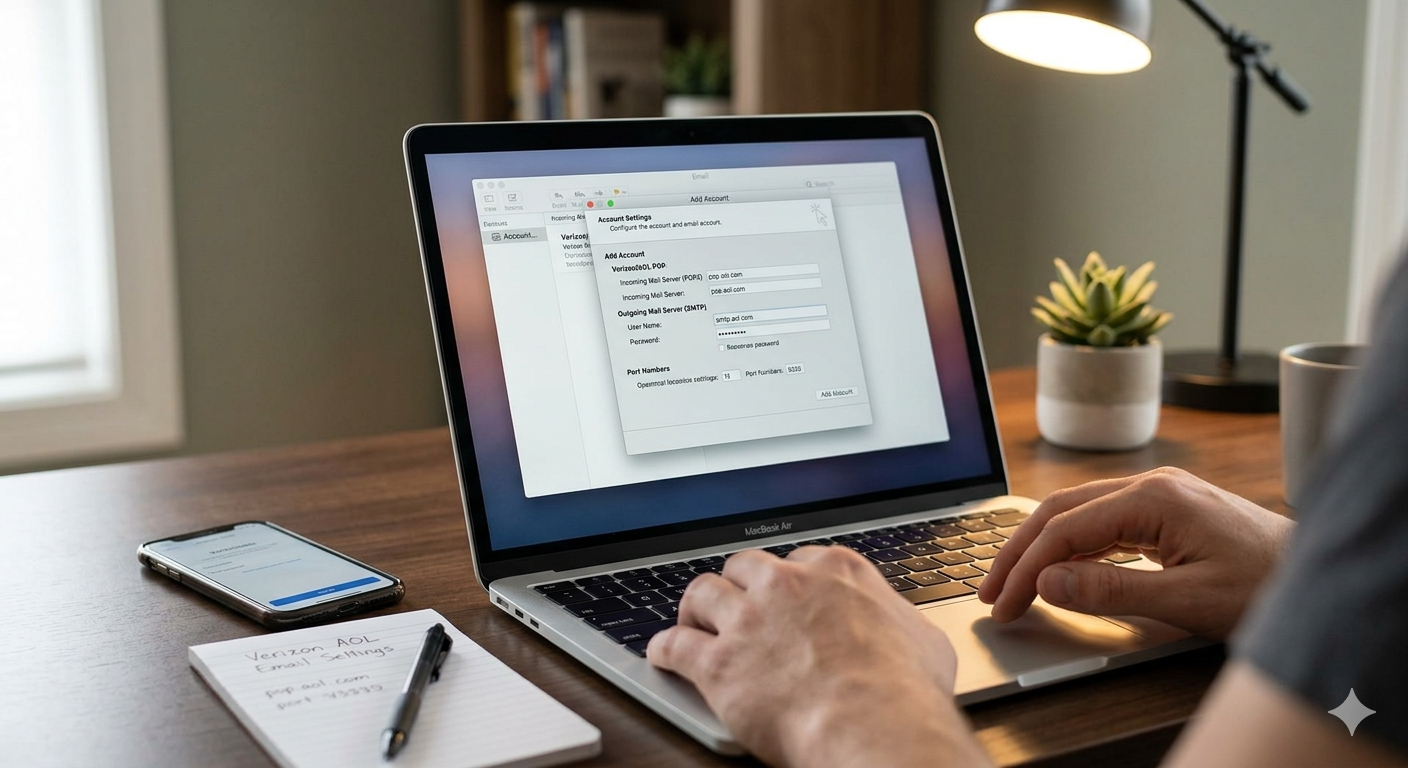
To fix the problem, it helps to understand why it broke. Years ago, Verizon exited the email business. Instead of shutting down the accounts, they migrated all Verizon email users to the AOL Mail platform.
While you kept your @verizon.net email address, your data is now stored on AOL servers. Therefore, to access your Verizon email, your email client must use AOL’s server settings, not Verizon’s. The most common reason for the “POP settings not working” error is that the email application is still trying to talk to old, decommissioned Verizon servers.
The Major Shift: App Passwords and OAuth
The single most critical update you must make is not to the server names, but to how you authenticate your account.
In an effort to increase security, AOL (and its parent company, Yahoo) now mandates the use of OAuth (Open Authentication) or App Passwords for third-party email clients. If you are entering your regular AOL/Verizon account password into your email app, it will fail, and you will receive an authentication error.
What is an App Password?
An App Password is a long, randomly generated, 16-character code that you use instead of your regular password within a specific email application (e.g., the Outlook app on your phone). This password only works for that specific app. If that device is lost or compromised, you can revoke that specific app password without needing to change your main account password.
Step-by-Step Troubleshooting Guide
If your Verizon POP settings are not working, follow these steps in order to restore service.
Step 1: Generate an App Password (CRITICAL)
This is the most common point of failure. Before updating anything in your email client, you must generate a unique App Password.
- Open a web browser and go to the AOL sign-in page (usually via
login.aol.com). - Log in using your full Verizon email address (
yourname@verizon.net) and your current AOL password. - Navigate to your Account Security settings.
- Look for a section titled Manage App Passwords or Generate App Password.
- Select your email application from the dropdown list (e.g., “Outlook Desktop”) or enter a custom name.
- Click Generate.
- A 16-character password will appear. Copy this password immediately. This is the only time it will be displayed.
Step 2: Verify Correct POP3 Server Settings
Now that you have your App Password, you need to configure your email client to talk to the correct AOL servers. The old Verizon settings (like pop.verizon.net) will not work.
Open the account settings in your email application (Outlook, Apple Mail, Thunderbird, etc.) and locate the POP server details. Ensure they match the following exactly:
Incoming Mail Server (POP3):
- Server Name:
pop.aol.com - Port: 995
- Requires SSL/TLS: Yes (Make sure this box is checked)
Outgoing Mail Server (SMTP):
- Server Name:
smtp.aol.com - Port: 465 (Alternative: 587, but 465 is preferred for SSL)
- Requires SSL/TLS: Yes
- Requires Authentication: Yes (Usually a checkbox that says “My outgoing server (SMTP) requires authentication” or “Use same settings as incoming server”).
Step 3: Update Authentication and Password
This is where you apply the App Password you generated in Step 1.
- In your email client’s account settings, locate the Password field.
- Delete your existing password.
- Paste the 16-character App Password you copied in Step 1. Do not use your regular account password.
- Click Save, Done, or Account Settings to apply the changes.
Common Issues and Advanced Troubleshooting
If you have updated the settings and applied the App Password but are still experiencing issues, consider these factors:
1. Incoming vs. Outgoing Authentication
Most email clients require authentication for both incoming and outgoing mail. If you can receive email but cannot send it (or vice-versa), check the SMTP (Outgoing) settings. Ensure that the box “My outgoing server requires authentication” is checked, and that it is set to “Use the same settings as my incoming mail server” (which will use the App Password you already entered).
2. Network and Firewalls
Sometimes, security software, firewalls, or even your VPN can block the specific ports needed for secure email communication (Ports 995 and 465). Briefly disable your VPN or firewall to see if connectivity is restored. If it is, you will need to create an exception in your security software for your email client.
3. Corrupt Account Profile
If you have tried all the steps and the account still refuses to sync, the issue might lie in the email client’s configuration profile itself. The cleanest solution is to delete the email account from the application entirely and then add it back “from scratch” using the correct pop.aol.com settings and the new App Password. (Be sure to back up any local contacts or calendars before deleting the account).
4. The POP Limitation (A Strong Warning)
POP3 is an older protocol. It is designed to download emails from the server to a single device and then (usually) delete them from the server.
If you are trying to access your Verizon email from multiple devices (e.g., your phone, a laptop, and a tablet), POP is the wrong protocol. If one device downloads the messages, the other devices will not see them.
Highly Recommended Alternative: Use IMAP.
Instead of POP, you should strongly consider using IMAP (Internet Message Access Protocol). IMAP syncs the email server with all your devices in real-time. If you read, delete, or flag an email on your phone, that change is immediately reflected on your laptop.
If you want to switch to IMAP (which is recommended), use these settings:
- Incoming Server (IMAP):
imap.aol.com(Port 993, SSL/TLS) - Outgoing Server (SMTP):
smtp.aol.com(Port 465, SSL/TLS) - Password: (You will still need to generate and use a new App Password for IMAP).
Also Read: Scan To Email SMTP Settings Office 365 Not Working
Source: Verizon Email Settings: IMAP, POP3 & SMTP Setup Guide (2026)