
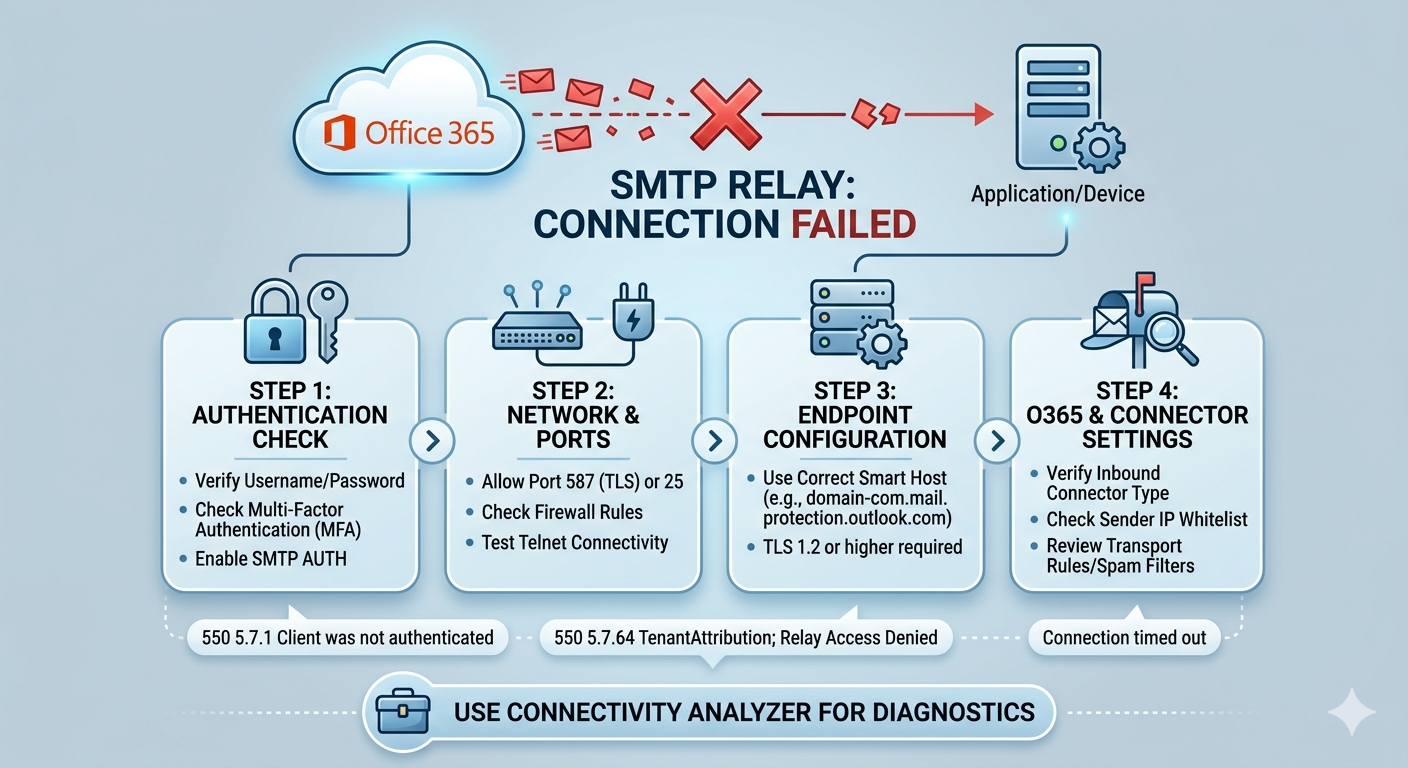
Setting up an SMTP relay in Office 365 is a critical task for businesses that need to send automated emails—such as invoices, alerts, or newsletters—from applications, devices (like printers or scanners), or legacy servers. When this relay stops working, it can disrupt essential workflows. This guide will help you understand common failure points and navigate the troubleshooting process.
Understanding How Office 365 SMTP Relay Works
To troubleshoot effectively, you must first understand which method of SMTP relay you are using. Microsoft offers three primary ways to send email from devices and applications:
- SMTP Client Submission (Authenticated): The application connects directly to
smtp.office365.comon port 587 and authenticates as a specific O365 mailbox. - Direct Send: The application sends mail directly to the MX endpoint (e.g.,
yourdomain-com.mail.protection.outlook.com) using port 25. This method does not authenticate but must come from a static, public IP. - Office 365 SMTP Relay (Connector): Similar to Direct Send, but the traffic is authorized within O365 using a configured “Inbound Connector” linked to specific sender IP addresses.
Identifying your active method is the crucial first step shown in the troubleshooting flowchart.
Phase 1: Verification and Network Foundation
The earliest point of failure is usually environmental—your local network security or incorrect credentials.
1. Authentication and Licensing (SMTP Client Submission Only)
If you are using authenticated SMTP (smtp.office365.com):
- Credential Accuracy: A simple typo is common. Double-check that the application is using the correct username (full email address) and password. Try logging into the Outlook Web App with those credentials to confirm they are valid.
- MFA Block: Multi-Factor Authentication (MFA) on the mailbox used for sending will block standard SMTP authentication. SMTP AUTH does not support MFA prompts.
- Enable SMTP AUTH: Starting in 2022, Microsoft began disabling legacy SMTP authentication by default. You must explicitly enable SMTP AUTH for the specific mailbox in the Microsoft 365 Admin Center (Users > Active Users > Manage email apps > SMTP AUTH).
2. Network Security and Port Blocking
Before O365 can process your request, the traffic must leave your network.
- ISP Blocks: Many residential and business Internet Service Providers (ISPs) block outbound traffic on port 25 (Direct Send/Relay) to combat spam. If this is blocked, your application will fail.
- Port 587 (Authenticated): This port must be open for SMTP Client Submission. It is widely used and less likely to be blocked by ISPs than port 25.
- Internal Firewalls: Your corporate firewall or edge device must allow outbound connections on these ports (25 or 587) to the Microsoft 365 IP range. Use a network utility like Telnet to test connectivity to the endpoint (e.g.,
telnet smtp.office365.com 587).
Phase 2: Configuration and Infrastructure
Once network connectivity is confirmed, the settings within the application and the O365 tenant must align perfectly.
3. Endpoint and Encryption Settings
The correct smart host or MX endpoint is essential.
- Smart Host Accuracy: Direct Send and Connector relay use the MX endpoint (
<tenant>.mail.protection.outlook.com), notsmtp.office365.com. A common error is mixing up which endpoint goes with which method. - Transport Layer Security (TLS): Modern Office 365 requires TLS for secure communication. Ensure your application supports and is configured to use STARTTLS (opportunistic TLS) or explicit TLS. Microsoft requires TLS 1.2 or higher for robust security. Applications relying on SSL (Implicit TLS) on port 465 are outdated and generally unsupported.
Phase 3: Advanced O365 Portal Configuration
For complex setups using the Connector method (e.g., sending on behalf of other domains or from devices with strict IP controls), the validation logic shifts to the O365 Exchange Admin Center (EAC).
4. O365 & Connector Settings
If you are using the dedicated SMTP Relay (Method 3):
- Connector Specifics: An Inbound Connector must be set up in the EAC (Mail Flow > Connectors). It should be configured to accept mail only from specified sender IP addresses.
- IP Whitelist: The external, static public IP address of the sending device must be added to this connector configuration. If your IP address changes dynamically, the relay will stop working.
- Transport Rules & Spam: Occasionally, internal mail flow rules or aggressive spam filters in the O365 Security & Compliance center might be capturing and quarantining legitimate automated traffic. Review the Message Trace logs in the EAC to determine the final disposition of the missing emails. The trace will provide the detailed error code (e.g.,
550 5.7.1 Client was not authenticated) that points directly to the failing configuration step in the workflow.
Using Diagnostics Tools
If you have ruled out simple configuration issues and are still blocked, rely on detailed diagnostics. The Microsoft 365 Connectivity Analyzer (available at connectivity.office.com) can simulate SMTP submission and provide a detailed report on where the connection fails. This tool is invaluable for isolating problems before escalating to Microsoft Support.
Also Read: Complete Guide: Fixing MSN POP3 Mail Server Connection Issues
Source: SMTP RELAY for OFFICE 365 – Configure, Test, and Troubleshoot