
In an age where our lives are inextricably linked with digital accounts, from online banking and social media to professional platforms and streaming services, maintaining strong and unique passwords for each is paramount for security. However, the sheer number of credentials we manage quickly becomes overwhelming, leading many to resort to dangerous practices like recycling passwords or using weak, easily guessable ones. This is where a password manager comes in, and for those who prioritize security, control, and privacy above all else, KeePass Password Safe stands as a powerful and respected open-source solution.
KeePass is not just another password manager; it’s a versatile, local-first application designed to securely store and organize all your credentials and other sensitive information. Unlike cloud-based password managers that store your data on their servers, KeePass operates on the principle of keeping you in complete control, allowing you to manage your own secure database file.
What is KeePass?
KeePass is a free, open-source password manager primarily developed for Windows but is available on other platforms through various unofficial ports and derivatives. It’s built around a central, encrypted database file where all your usernames, passwords, notes, and other sensitive details are securely stored. Access to this database is protected by a master password, a key file, or a combination of both, ensuring that only you can unlock its contents.
Key Features of KeePass
- High Security: At its core, KeePass utilizes strong encryption algorithms like AES-256 and ChaCha20 to safeguard your database. This means even if someone were to gain access to your database file, they wouldn’t be able to read its contents without the correct master password or key file.
- Local Storage and Control: This is perhaps the defining feature of KeePass. Your entire password database resides on your computer or a location of your choice (like a USB drive or a network share), not on a remote server. This eliminates the risk of a centralized data breach impacting your credentials and gives you absolute control over your security.
- Cross-Platform Compatibility: While officially for Windows, KeePass’s open-source nature has spawned numerous compatible ports and forks, making it accessible on macOS, Linux, Android, iOS, and even from a USB stick without installation. Popular options include KeePassXC (for Windows, macOS, Linux), KeePassDX (for Android), and KeePassium (for iOS).
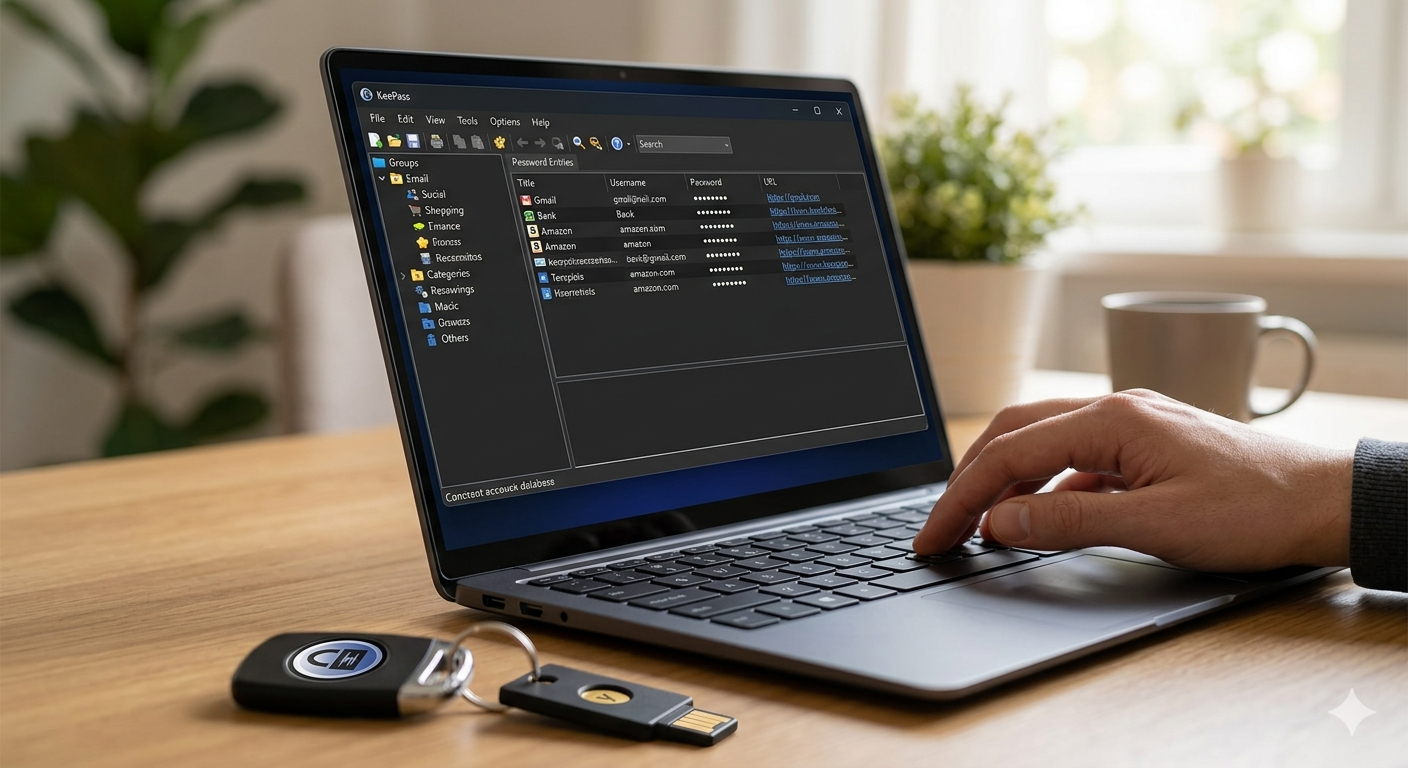
- Flexible Database Organization: KeePass allows you to group and categorize your entries in a clear, hierarchical tree structure. You can create custom groups (e.g., “Email,” “Social Media,” “Banking”) and even use custom icons for different entries, making it easy to find what you need.
- Built-in Password Generator: No more wracking your brain for strong passwords. KeePass includes a powerful password generator that can create random, complex passwords based on your specified criteria, including length, character types, and specific requirements.
- Auto-Type Functionality: This feature streamlines logging into websites and applications. With a simple hotkey, KeePass can automatically type your username and password into the active window, reducing the risk of keylogging and making the process faster and more secure.
- Extensible Through Plugins: KeePass boasts a robust plugin architecture, allowing users to enhance its functionality with features like two-factor authentication integration, backup solutions, and more. This makes it highly customizable and adaptable to individual needs.
Getting Started with KeePass: A Step-by-Step Guide
Embracing KeePass for your password management is a proactive step towards enhancing your online security. Here’s a basic guide to get you started:
- Download and Install: Visit the official KeePass website (keepass.info) and download the version appropriate for your operating system. For cross-platform compatibility, consider using a well-maintained fork like KeePassXC.
- Create a New Database: Launch KeePass and select “File” > “New.” You’ll be prompted to save your new database file (
.kdbx). Choose a secure location, preferably not in your main document folder but rather a dedicated security folder, and remember to back it up regularly. - Set Your Master Credentials: This is the most crucial step. You must choose a strong and memorable master password. This single password will unlock your entire database, so make it complex and unique, perhaps even a passphrase (a sequence of random words). Optionally, you can also generate and use a key file for an added layer of security, making it even harder for unauthorized access.
- Configure Database Settings: After creating the master password, you’ll be guided through essential setup options. This includes choosing your desired encryption algorithm and deciding on a database name and optional description.
- Start Adding Entries: Now you can begin populating your database with your account information. Click “Entry” > “Add Entry.” Fill in the “Title” (e.g., “Google,” “Facebook”), “Username,” “Password” (you can use the built-in generator to create a strong one), and the “URL” (the website address). Add notes or other fields as needed.
- Organize with Groups: To keep your database manageable, create groups to categorize your accounts. Right-click on the left pane and select “Add Group.” Move your entries into the relevant groups to maintain a clear and logical structure.
Practical Tips for Effective KeePass Usage
- Backup, Backup, Backup: Your database file is the single most important component of your KeePass setup. Regularly back it up to multiple secure locations, such as an encrypted external hard drive or a secure cloud storage provider, but ensure the backup is also encrypted or protected.
- Utilize the Password Generator: Make it a habit to always use the built-in password generator for all new and existing accounts. This ensures you’re using unique and complex passwords for each service, minimizing the impact of a potential breach.
- Explore Auto-Type: Master the Auto-Type feature. It’s a significant time-saver and adds an extra layer of security against keyloggers. Take time to configure global Auto-Type hotkeys for even greater efficiency.
- Keep Software Updated: Regularly update KeePass and any plugins you use. Developers constantly patch security vulnerabilities and add new features, so staying up-to-date is crucial for maintaining optimal security.
- Consider a YubiKey: For enhanced two-factor authentication, consider using a physical security key like a YubiKey with KeePass. This adds a powerful layer of protection, making it almost impossible for someone to access your database without the physical key, even if they know your master password.
KeePass might have a slightly steeper learning curve compared to some polished, commercial password managers, but its unwavering focus on security, complete user control, and flexibility make it an invaluable tool for anyone serious about safeguarding their digital identity. By adopting KeePass and following best practices, you empower yourself with a robust and secure vault for all your digital keys, allowing you to navigate the online world with greater confidence and peace of mind.
Also Read: Brightspeed: Transforming America’s Digital Future Through Next-Generation Fiber Connectivity
Source: KeePass – Wikipedia