
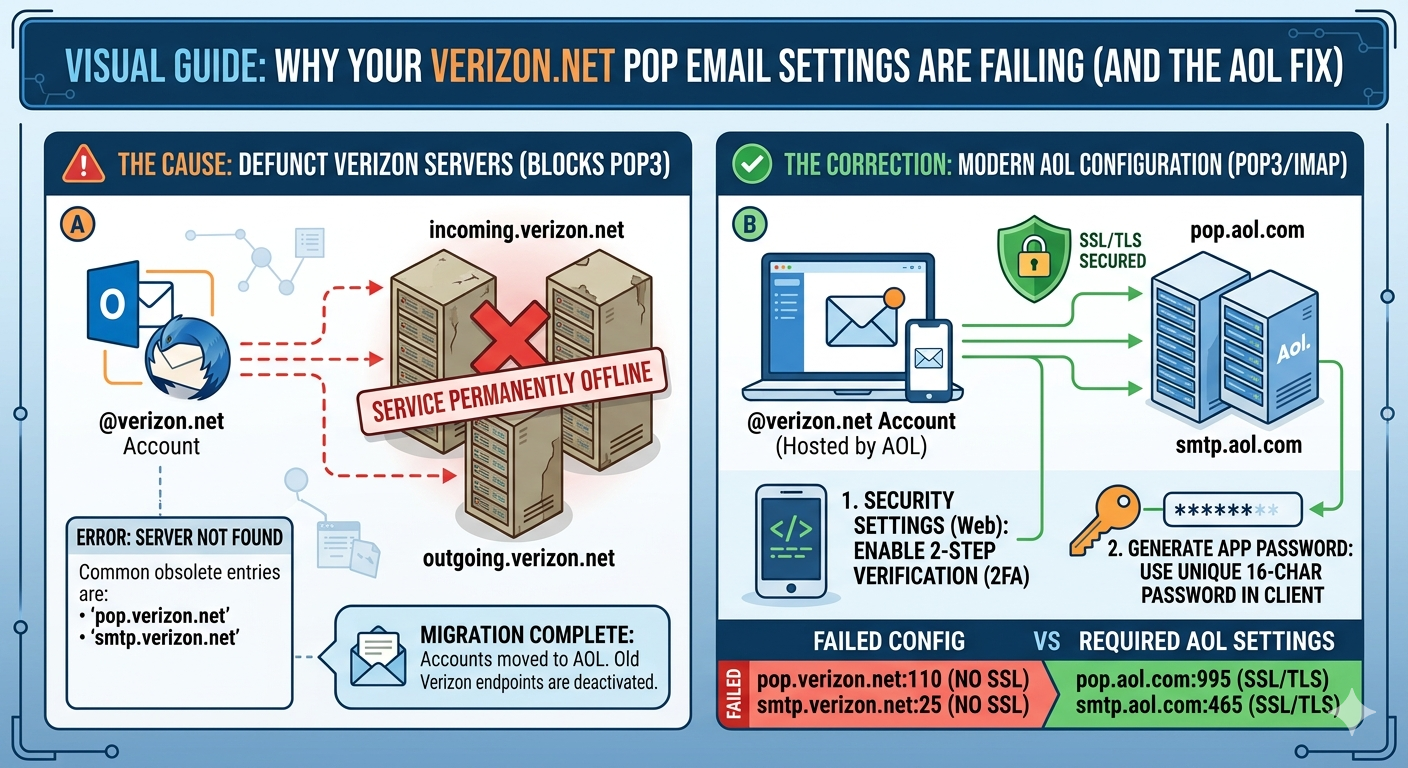
If your Verizon POP email settings are not working, the single most critical reason is the massive structural change Verizon implemented. Verizon completely exited the residential internet and email business several years ago. They did not just update their servers; they migrated all @verizon.net email accounts to AOL Mail.
Users had a choice: migrate their existing account data to AOL or migrate it to Yahoo (which AOL also owned). If a user did nothing during the migration periods, those accounts were eventually deactivated.
Therefore, if you are attempting to use the old incoming.verizon.net or outgoing.verizon.net settings, they will fail. The standard Verizon POP3 and SMTP servers are permanently offline. To continue using an @verizon.net address, your email client (Outlook, Thunderbird, Apple Mail, etc.) must be reconfigured to communicate specifically with the AOL infrastructure.
Phase 1: The Modern Foundation (The AOL Platform)
The old security paradigm (simply entering a password) is no longer sufficient. Both AOL and Verizon, now part of the Yahoo family, have standardized advanced security protocols. This means that to fix your email, you must address two non-negotiable requirements before even touching your server settings.
1. Security First: App Passwords and 2FA
Modern email clients and modern email servers must authenticate securely. AOL now strongly recommends (and often requires) the use of Two-Step Verification (2FA).
When 2FA is active, standard, simple passwords will not work in third-party clients like old versions of Outlook, Thunderbird, or older mobile devices. These apps do not know how to prompt you for the second factor (the text code).
The Solution: The AOL App Password. If you are using POP, you are using a third-party application. You cannot use your main AOL webmail password in that application’s settings. You must generate a unique, 16-character App Password.
- How to fix it:
- Log in to your AOL account security page (usually via standard AOL webmail).
- Navigate to account security settings.
- Look for “Manage app passwords” or “Generate app password.”
- Select your application (e.g., “Outlook Desktop”) and click ‘Generate.’
- Copy this long password immediately. You will use this password in the password field of your email client configuration, not your regular one.
Phase 2: Updating the POP Server Settings (AOL Config)
Once you have your App Password ready, you must change the server names and ports to point to AOL, not the dead Verizon servers. POP3 (Post Office Protocol) is a specific, older protocol that downloads mail to one device and often deletes it from the server. If you require your email to sync across multiple devices (phone, laptop, tablet), you should be using IMAP, not POP3. (We will address the crucial POP vs. IMAP distinction later).
However, if you must use POP, here are the exact settings required for your converted Verizon.net account now hosted by AOL:
Incoming Mail Server (POP3)
The old setting (pop.verizon.net or similar) is defunct.
- New Server Name:
pop.aol.com - Port:
995 - Requires SSL/TLS: Yes (This must be checked)
Outgoing Mail Server (SMTP)
The SMTP (Simple Mail Transfer Protocol) server is what sends your mail. It must also point to AOL.
- New Server Name:
smtp.aol.com - Port:
465(Recommended) or587 - Requires SSL/TLS: Yes (Check SSL/TLS for 465, or STARTTLS for 587)
- Requires Authentication: Yes (This is critical. You must check the box that says “My outgoing server (SMTP) requires authentication.” It must use the same credentials as your incoming mail server, including the App Password.)
Phase 3: Analyzing Common POP Failures
Even with the correct AOL server settings, POP configurations are prone to specific errors.
1. SSL/TLS Handshake Failures
POP3 and SMTP must be encrypted. If you have specified the correct port (e.g., 995) but have not checked the “This server requires an encrypted connection (SSL)” box, the connection will time out or reject your credentials. The server requires secure connection established before it accepts your App Password.
2. Authentication Failures (The Password Trap)
This is the most frequent culprit. The dialogue box in Outlook may repeatedly pop up, asking for your password, even though you know you typed your AOL password correctly.
- The Cause: You are trying to use your main account password, not an App Password. The modern AOL security layer blocks this basic authentication attempt.
3. Mailbox Already Locked
POP was designed when people only accessed email from a single computer. When a POP client connects to the mailbox to download mail, it often locks the mailbox on the server to prevent data corruption. If you are checking email on your smartphone (using POP) and simultaneously try to check it on your desktop, the second device will fail to connect because the “mailbox is locked” by the first session.
4. Firewall and Antivirus Interference
Sometimes, security software gets overzealous. An aggressive firewall or antivirus email scanner may intercept the encrypted SSL connection (on ports 995, 465, or 587). This breaks the security chain, causing the authentication or connection to fail. To diagnose this, temporarily disable email scanning in your antivirus software and attempt the connection again.
Final Critical Recommendation: Abandon POP for IMAP
If you are experiencing constant Verizon email issues while using POP, the definitive, long-term solution is often to switch your account setup from POP3 to IMAP.
POP3 is an antiquated protocol designed in 1984 for a world where people had one computer and very limited server storage. IMAP (Internet Message Access Protocol) is the modern standard.
| Feature | POP3 | IMAP |
| Primary Function | Downloads mail from server to one device. | Syncs mail between server and multiple devices. |
| Server Status | Often deletes messages from the server after download. | Keeps messages on the server; devices view copies. |
| Synchronization | No synchronization. Sent items, drafts, and read/unread status on one device are not updated on others. | Complete synchronization. Sent mail on your phone appears in Sent mail on your desktop. |
| Multiple Devices | Poor. Causes “Mailbox Locked” errors. | Excellent. Designed for multi-device access. |
How to switch: You cannot simply “change” the protocol in your existing account settings. To move from POP3 to IMAP, you must add a new email account to your email client. When prompted, select IMAP (the client may autoconfigure this now, using imap.aol.com, port 993, and your App Password).
Once the IMAP account is syncing correctly, you can disable or delete the old, problematic POP3 profile. IMAP is the protocol Verizon/AOL strongly recommends for all modern users.
Also Read: Transforming America’s Digital Future
Source: Verizon Email Settings: IMAP, POP3 & SMTP Setup Guide (2026)