
Configuring a Simple Mail Transfer Protocol (SMTP) server to send emails through Microsoft 365 (formerly Office 365) is a standard procedure for connecting multi-function printers, scanners, line-of-business applications, and WordPress sites. However, it is also one of the most common configuration traps that administrators encounter.
If your Microsoft 365 SMTP setup is refusing to send emails, you are likely dealing with authentication failures, firewall blocks, or strict security defaults. This comprehensive guide details why your setup isn’t working and provides actionable steps to fix it.
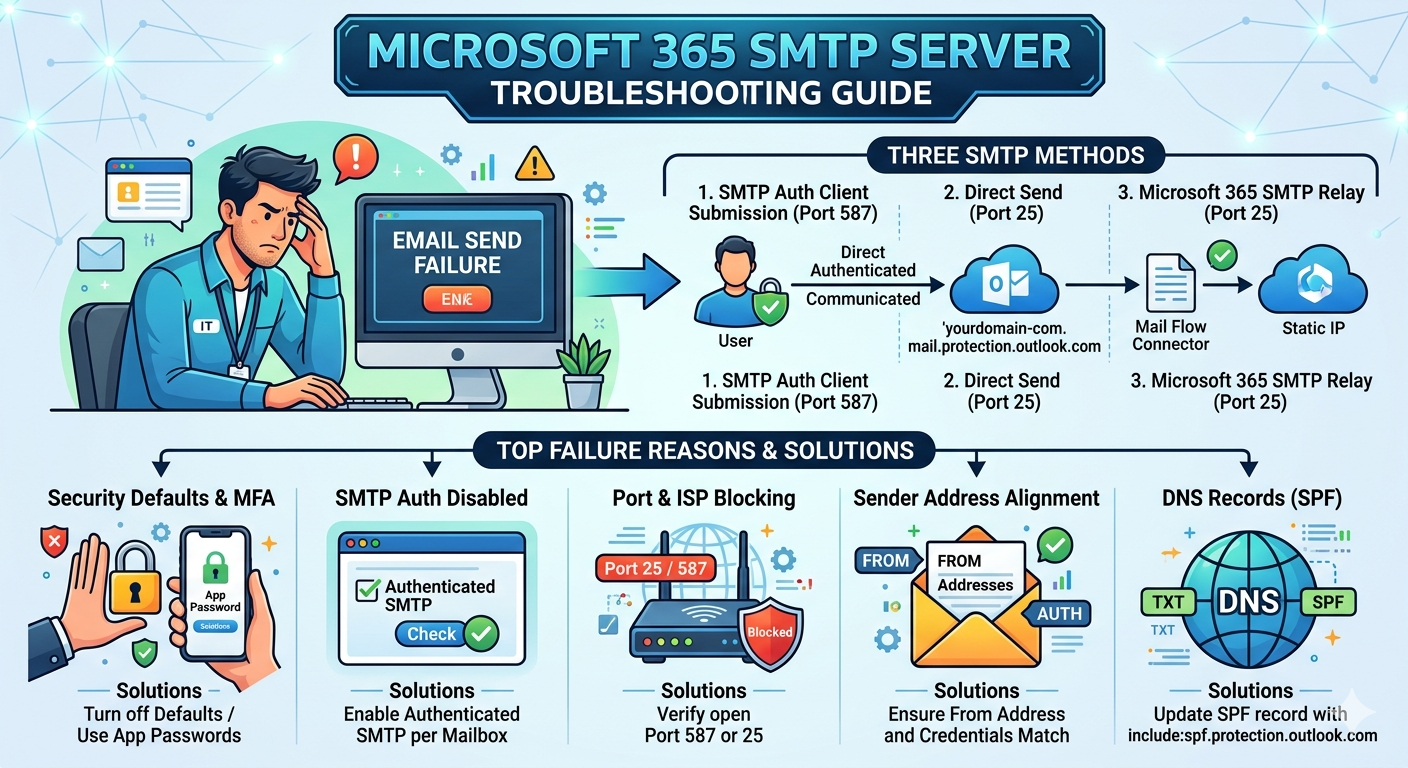
Understanding the Three Microsoft 365 SMTP Methods
Before diving into troubleshooting, it is vital to know which connection method you are utilizing, as each has distinct requirements and failure points.
1. SMTP Auth Client Submission (Port 587)
This method connects a specific licensed mailbox to an application or device using a username and password.
- Pros: Allows sending to both internal and external recipients.
- Cons: Highly restricted by modern security standards and subject to strict sending limits.
2. Direct Send (Port 25)
Your application connects directly to your Microsoft 365 MX endpoint (e.g., yourdomain-com.mail.protection.outlook.com).
- Pros: No licensed mailbox or authentication credentials required.
- Cons: Can only send to internal recipients within your organization.
3. Microsoft 365 SMTP Relay (Port 25)
An advanced method that maps your public IP address to a mail flow connector inside Microsoft 365.
- Pros: Can send to external domains without authenticated credentials.
- Cons: Requires a static public IP address and complex DNS configurations.
Top Reasons Your SMTP Setup Is Failing (And How to Fix Them)
Reason 1: Security Defaults and Multi-Factor Authentication (MFA)
By default, modern Microsoft 365 tenants enforce Security Defaults. This automatically blocks legacy authentication protocols, including SMTP Auth. If your device tries to log in with a traditional username and password on a tenant where Security Defaults are active, or where the specific user account has MFA turned on, the connection will fail immediately.
The Fix:
- For Security Defaults: Navigate to the Microsoft Entra admin center, go to Properties, select Manage Security Defaults, and turn them off. (Note: Only do this if you intend to manage security via conditional access policies instead).
- Use App Passwords: If your account utilizes MFA but Security Defaults are off, generate a 16-character App Password from the user’s Microsoft Account Security settings page and use it in place of the standard account password.
Reason 2: SMTP Authentication is Disabled on the Mailbox
Even if tenant-wide settings allow it, Microsoft routinely disables SMTP Auth at the individual mailbox level for security reasons.
The Fix: You must manually enable SMTP Auth for the specific account via the Microsoft 365 Admin Center.
Via Admin Center:
- Go to the Microsoft 365 Admin Center.
- Navigate to Users, select Active Users, and click on the target mailbox.
- Select the Mail tab, then under Email apps, click Manage email apps.
- Check the box for Authenticated SMTP and save changes.
Reason 3: Network and Port Blocking (ISP Constraints)
Many Internet Service Providers (ISPs) and corporate firewalls block outbound traffic on Port 25 to prevent spamming behavior. Furthermore, if you are attempting to use SMTP Auth, misconfiguring the port or TLS requirement will break the handshake.
The Fix: Verify that your firewall permits outbound communication on the following parameters based on your selected method:
- SMTP Auth: Server Address is smtp.office365.com, Port is 587, and Encryption is STARTTLS or TLS.
- Direct Send: Server Address is yourdomain-com.mail.protection.outlook.com, Port is 25, and Encryption is TLS (Optional).
- SMTP Relay: Server Address is yourdomain-com.mail.protection.outlook.com, Port is 25, and Encryption is TLS (Optional).
Reason 4: Invalid Sender Address Alignment
Microsoft 365 enforces a strict anti-spoofing policy. If you authenticate with printer@yourdomain.com but your application tries to send emails with a “From” address of noreply@yourdomain.com, the SMTP server will reject the transaction with a client permission error.
The Fix: Ensure the account configured in your application’s “From” field matches the exact credentials used to authenticate the SMTP session. If you must send as a different address, grant “Send As” or “Send on Behalf” permissions to the authenticating user over that target address within the Exchange Admin Center.
Reason 5: Missing or Incorrect DNS Records (SPF & DKIM)
If you are using Direct Send or SMTP Relay, Microsoft 365 verifies the sending source by checking your domain’s public DNS records. If your public static IP address is not explicitly listed in your Sender Policy Framework (SPF) record, emails will either drop completely or land straight in the junk folder.
The Fix: Update your public TXT (SPF) record at your domain registrar.
- If you only use Microsoft 365: v=spf1 include:spf.protection.outlook.com ~all
- If you are relaying from a local static IP (e.g., 192.0.2.55): v=spf1 ip4:192.0.2.55 include:spf.protection.outlook.com ~all
Step-by-Step Diagnostic Checklist
If your configurations look correct but the system still fails to communicate, run this rapid-fire check:
- Ping Test: Open a command prompt or terminal on the host device and run a network connectivity command to confirm that port 587 or port 25 is completely unblocked and reachable.
- TLS Version: Ensure your device supports TLS 1.2 or TLS 1.3. Microsoft has deprecated legacy TLS 1.0 and 1.1 protocol suites; older hardware or legacy software components will fail to build a secure handshake.
- License Verification: Confirm that the mailbox account you are using for SMTP Auth actually possesses an active, valid Exchange Online license.
By systematic isolation of the authentication parameters, verifying port integrity, and ensuring mailbox-level permissions align correctly, you can successfully resolve Microsoft 365 SMTP server disruptions.
Also Read: Understanding the Spectrum: From Light to Life
Source: Office 365 SMTP Settings: Complete Setup Guide 2025 – Sales So