
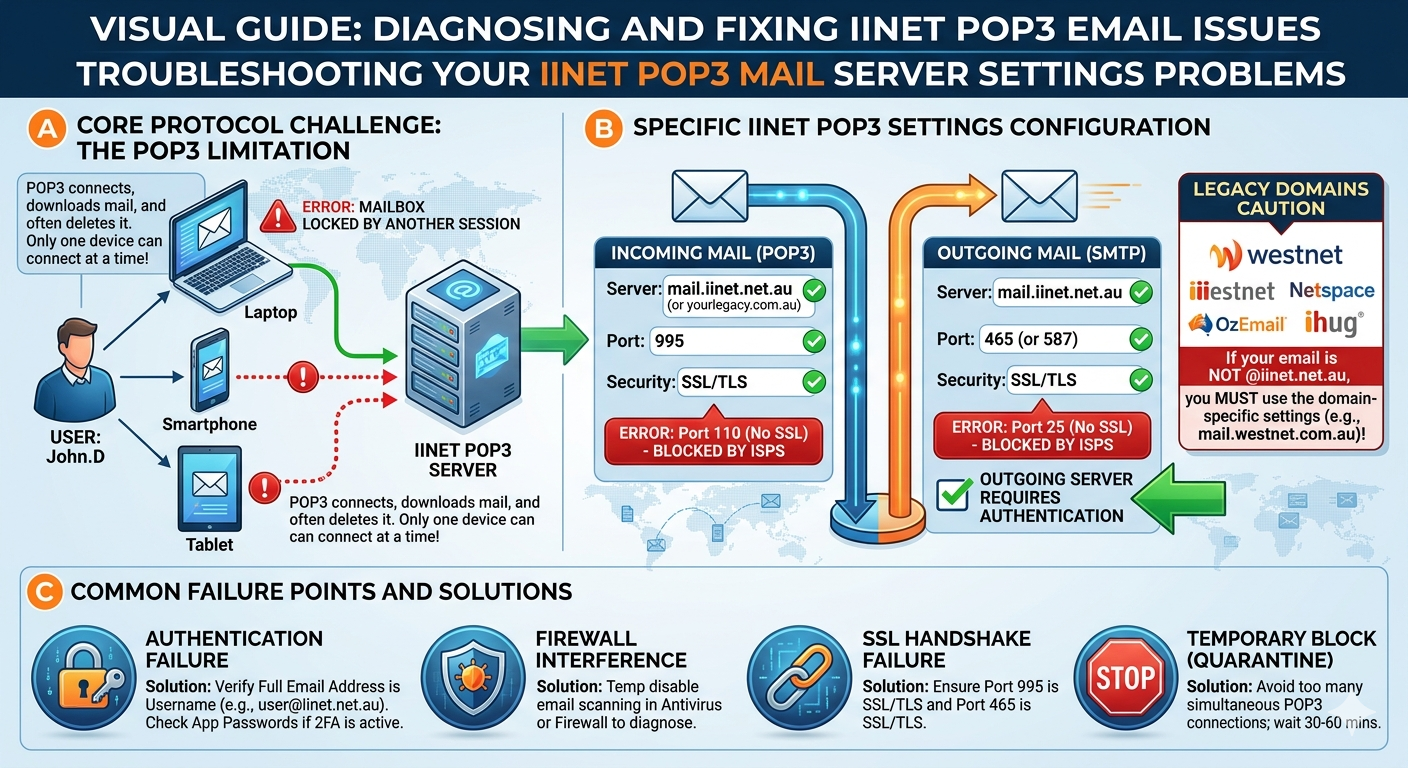
If your iiNet POP3 email settings are problematic, the first critical step is realizing that “iiNet” often isn’t just one domain. iiNet is a major Australian ISP that grew significantly by acquiring other smaller ISPs over decades. Consequently, the “iiNet email system” supports a vast ecosystem of legacy email domains.
A primary source of user frustration is attempting to apply standard mail.iinet.net.au settings to a legacy account. The first rule of troubleshooting iiNet email is identifying your specific domain. Common affected domains include:
- iiNet:
@iinet.net.au - Westnet:
@westnet.com.au - Netspace:
@netspace.net.au - OzEmail:
@ozemail.com.au - Ihug:
@ihug.com.au - Others: (e.g., Adelaide Free Internet, Adam Internet)
If your email address ends in anything other than @iinet.net.au, the universal settings may fail or cause authentication errors. You must use the specific incoming and outgoing server addresses for your legacy domain.
Phase 1: The Core Protocol Misunderstanding (POP3 vs. IMAP)
Before modifying any settings, it is essential to diagnose why you are using POP3. Often, the “problem” isn’t the server settings themselves, but the inherent limitations of the protocol in a multi-device world.
POP3 (Post Office Protocol 3) was designed in an era (1980s) when users accessed email from only one computer, and server storage was expensive. POP3 connects to the server, downloads all messages to your local device (computer or phone), and typically deletes them from the server immediately after download.
If you have iiNet POP3 set up on both your laptop and your smartphone, you will encounter significant synchronization issues:
- Whichever device checks for new mail first gets the emails.
- The second device will not see those emails because they have been removed from the server.
- Sent items are only stored locally on the device used to send them.
The Solution: For 99% of modern users (accessing email on multiple devices), POP3 is obsolete. You should transition your account setup to IMAP (Internet Message Access Protocol), which syncs the entire mailbox and all folders across all devices.
Phase 2: Updating the POP3 Settings (If You Must)
If you have a specific, confirmed technical requirement to stick with POP3, or if you are only troubleshooting an old configuration, you must manually apply the correct parameters. Automatic setup wizards often guess legacy iiNet settings incorrectly.
Access your email client’s manual setup and apply these parameters. We will focus on the security and port settings, which are where 90% of failures occur.
1. Incoming Mail Server (POP3)
The old standard (port 110, unencrypted) is increasingly blocked by modern ISPs and security software due to the data vulnerability (your password travels in plain text). You must prioritize secure connections.
- Server Name (Standard iiNet):
mail.iinet.net.au- (Note: For legacy domains like Westnet, use
mail.westnet.com.au. For Netspace, usemail.netspace.net.au. If unsure, check iiNet’s official support pages for legacy domains.)
- (Note: For legacy domains like Westnet, use
- Port: 995 (Secure POP3)
- Security/Encryption: Yes (You must check the box marked SSL, TLS, or SSL/TLS, depending on your client.)
2. Outgoing Mail Server (SMTP)
The SMTP (Simple Mail Transfer Protocol) server is what sends your mail. Security settings here are critical; modern systems will reject connection requests on open, unauthenticated ports (like the old 25 or 587 without security).
- Server Name:
mail.iinet.net.au(This is usually universal across the iiNet group for SMTP, butmail.[yourlegacy].com.aumay also work). - Port: 465 (Recommended secure port) or 587 (Alternative secure port).
- Security/Encryption: Yes (Check SSL, TLS, or SSL/TLS).
- Requires Authentication: YES (Crucial Step). You must check the box stating “My outgoing server (SMTP) requires authentication.” Use the “Same settings as my incoming mail server.”
Phase 3: Common Points of Failure
Even with the correct addresses and ports, problems can persist due to secondary factors:
1. Password or Authentication Failures
This is the most common error. Remember that in an iiNet context, your “Username” is your entire email address (yourname@iinet.net.au), not just yourname. Furthermore, legacy accounts may occasionally require a unique App Password (especially if 2-Factor Authentication is active), rather than your main webmail password. Always generate an app-specific password if your client repeatedly prompts you for authentication after entering your known password.
2. Port and SSL Mismatches
This is purely a configuration error. If you specify Port 995 but leave the security type as “None,” the connection will time out because the client expects an unencrypted handshake but the server requires an SSL handshake. Similarly, Port 465 must pair with SSL/TLS. If the client tries to use STARTTLS on Port 465, the connection will break.
3. Firewall or Security Software Blocking
Overly aggressive security software or corporate firewalls can block these specific ports (995 and 465). A key diagnostic step is temporarily disabling your antivirus/firewall’s email scanning feature and attempting to send/receive again. If it works, you must create an exception for your email client.
4. Account Lockdown or “Quarantine”
iiNet, like most modern providers, uses automated security to block access if it detects too many failed connection attempts (often from a misconfigured device) or unusual behavior. This is to protect against hacking and brute-force attacks. If your settings are correct but you are still blocked, your IP address or account might be temporarily suspended. Wait 30–60 minutes and try again, or contact iiNet support to verify the account status.
Summary
The fastest route to resolving “iiNet POP3 mail server settings problems” is to abandon POP3 in favor of the modern, reliable IMAP protocol. If POP3 is essential, you must (A) confirm your specific legacy domain, (B) use secure ports (995, 465), and (C) verify that your username is your full email address.
Also Read: What is BMW iDrive?
Source: How to Add Iinet Email Account to Outlook – TechBloat